User Guide
SectresBook

SectresBook helps secretaries to maintain all the information of the members of their club by collating a list of identifiable information, past records, loan amounts and future tasks. This all-in-one tool eliminates the trouble of having to search through multiple notebooks or apps to find information regarding a club member, saving you time and effort so that you can focus on other tasks at hand.
With speed and efficiency, you can interact with SectresBook using the Command Line Interface (CLI)3, while still having the benefits of a visually appealing Graphical User Interface (GUI)4.
The intended audience of this User Guide are secretaries who are planning to use SectresBook, or secretaries who are already using SectresBook.
This User Guide is an in-depth guide to help you start managing your contacts, notes and finances. It includes installation instructions, features and how to use them, and Frequently Asked Questions (FAQ) for troubleshooting, ensuring a smooth pickup of SectresBook.
Table of Contents
- Introduction to SectresBook
- Using this guide
- Quick start
- User Interface
- Properties
- Features
- FAQ
- Glossary
- Summary
Introduction to SectresBook
SectresBook is a desktop application that helps you to manage information about your club members (such as loans and birthdays) and keep track of your tasks using notes.
SectresBook provides these main features:
- Adding a club member.
- Accessing, modifying members’ information.
- Adding a note.
- Accessing, modifying contents of a note.
- Tagging a club member or a note (or both) for organisation
Using this guide
This user guide contains all the information that you will need to use and learn SectresBook.
If you are a new user, the necessary knowledge for you to get started can be found here.
If you are an experienced user, a Summary is also provided, so you can quickly refer to the command formats.
Before you delve into the guide, do take note of the following highlighted information panels.
 Note: Used to highlight and display information you should
pay attention to.
 Tip: used to highlight tips which you might find useful
 Caution: used to highlight dangers and things to look out for.
In addition, for better readability, icons in this guide have been colored black. In the actual application, colors may be inverted, but their shape will remain the same.
Tip: This User Guide contains many clickable links. Use the keyboard shortcuts Alt + Left arrow and Alt + Right arrow to navigate back and forth between links quickly. (Command + Left arrow and Command + Right arrow for Mac)Quick start
-
Ensure you have Java
117 or above installed in your Computer. -
Download the latest
SectresBook.jarfrom here. -
Copy the file to the folder you want to use as the home folder5 for your SectresBook.
-
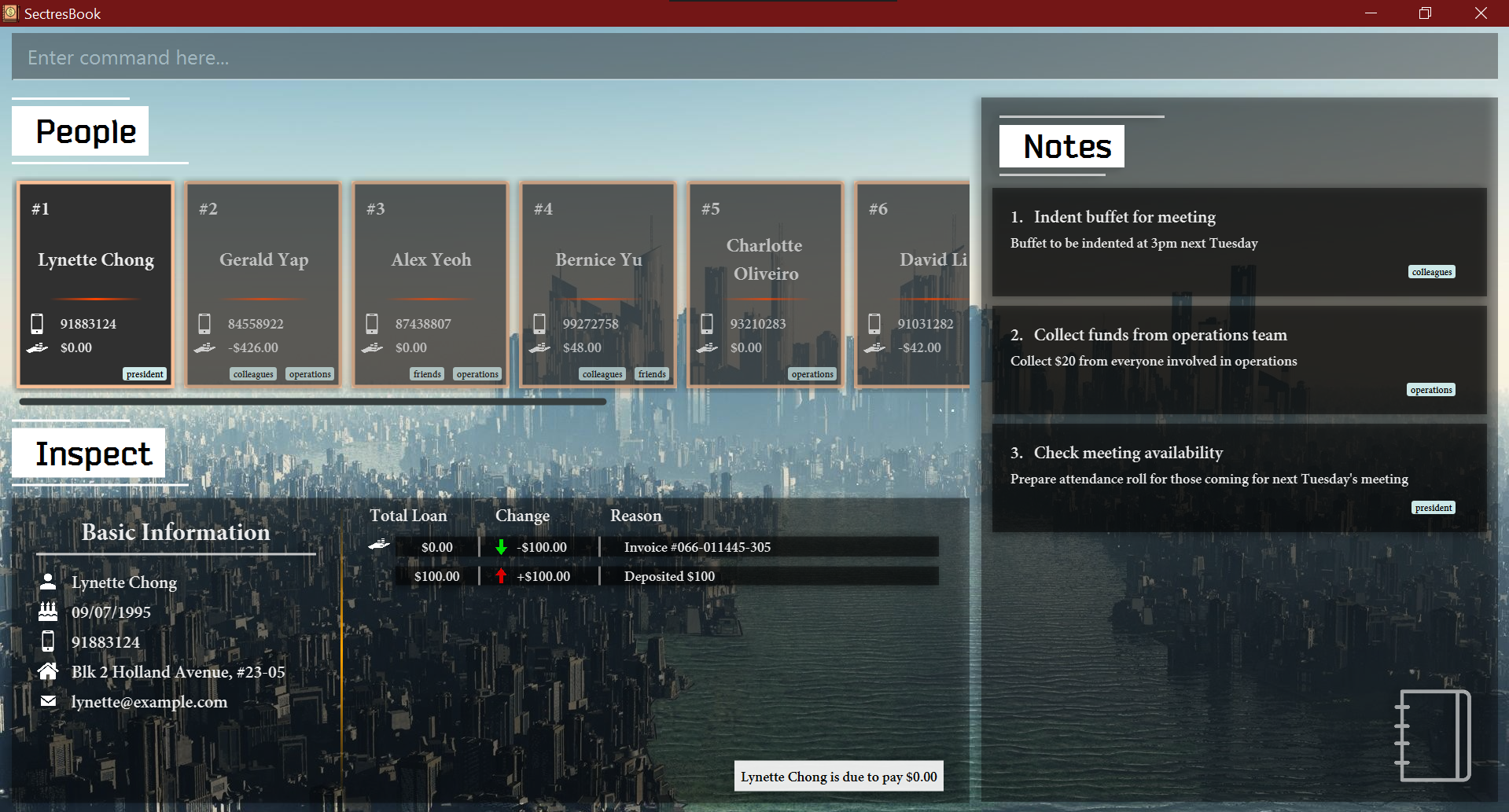
Double-click the file to start the app. A GUI4 similar to the one below should appear in a few seconds. Note how the app contains some sample data. (Don’t worry about the layout of the GUI4 yet! It will be explained in the next section.)
-
We strongly recommend you to use this app at a resolution of 1024x640 or greater to experience the greatest level of comfort. You may also click the fullscreen icon at the top right hand corner of the window next to the close icon to maximise the window.
-
Press your spacebar (recommended), or bring your cursor to the command box area and click onto it, to access the typing space. The results display will come into view below the command box.
- Type commands in the command box and press Enter to execute them. For example, typing
helpinto the command box and pressing Enter will open the help window.- Some example commands you can try:
-
list: Lists all contacts. -
add name/John Doe phone/98765432 email/johnd@example.com home/John street, block 123, #01-01 bday/01/01/2000: Adds a contact namedJohn Doeto the SectresBook. -
delete 3: Deletes the 3rd contact shown in the current list. -
help: Opens a help window. -
clear: Deletes all contacts. -
exit: Exits the app.
- Once you are done executing commands and want to see the GUI, press the
ESCkey (recommended), or click on anywhere that is not the command box, to leave the typing space and hide the results display.
Refer to Features below for details of each command.
User Interface
Here is an overview of the User Interface (UI) components.
The UI comprises four sections:
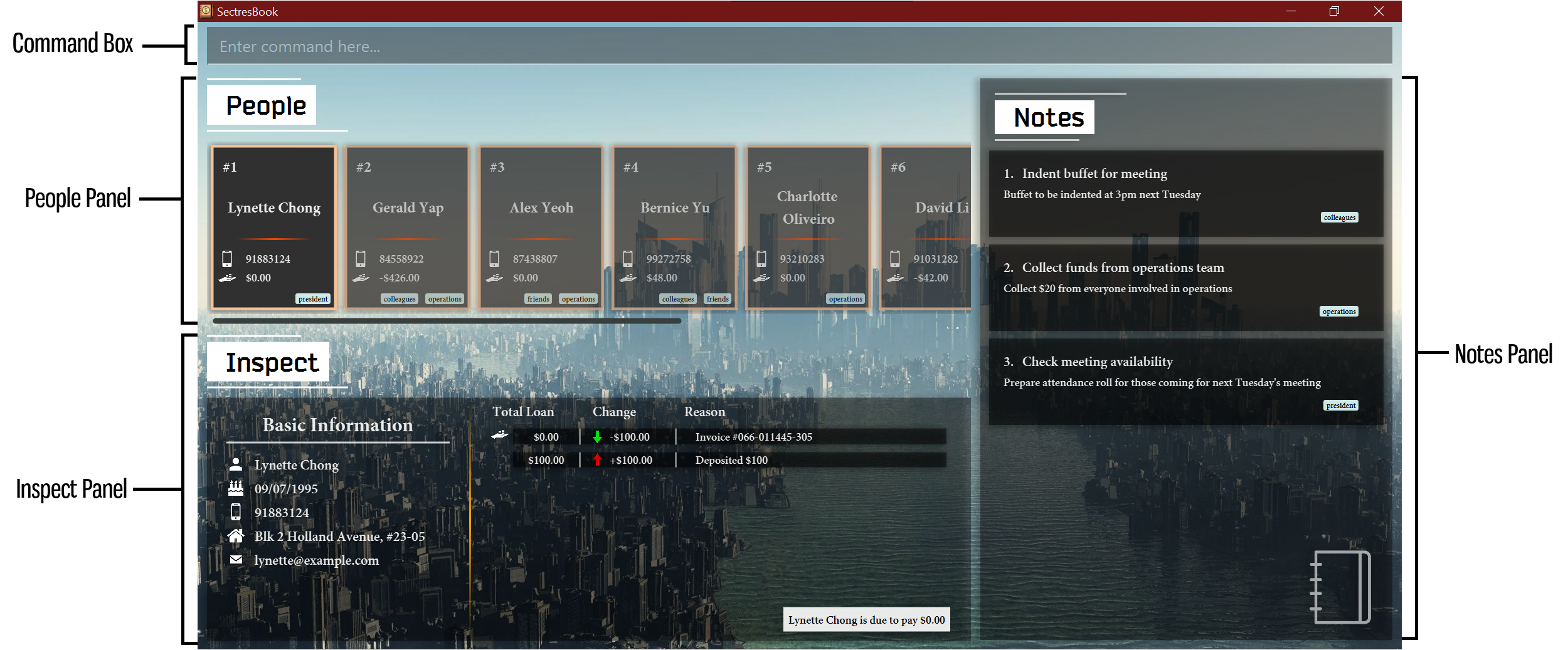
Command Box
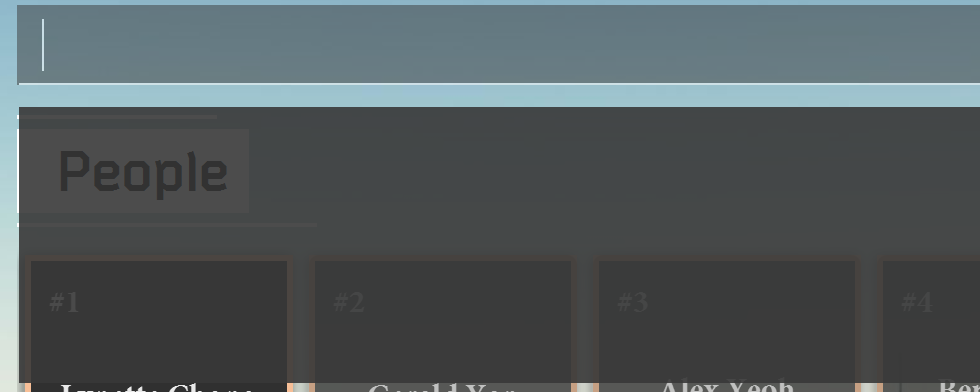
The Command Box is where you type in your command inputs. For more information on command inputs, refer to Features below.
Once the command box is selected, a results display will appear to report the status of the program to you. Error messages and success messages will be shown in this box. Click anywhere else on the screen, or press the ESC key to exit the command box and hide the results display.
Tip:
You may activate the command box by simply pressing the spacebar on your keyboard. There is no need to use your mouse to click on the bar.
Tip:
Similarly, you may press the ESC key on your keyboard to exit out of the command box and hide the results display.
People Panel
The People Panel contains all the club and organisation members you have registered in this book. They are laid out horizontally. You can scroll the list by hovering your mouse over the People Panel and scrolling the mouse-wheel, or by clicking on and dragging the horizontal scroll bar to scroll.
Each card represents a person and displays their name, phone number and total present loan amount. The loan amount may be positive to indicate an amount owed by the person, or negative to indicate an amount due to be paid to the person.
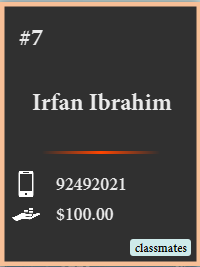
The index of the person only applies to the currently displayed list, it is not tied to the person itself.
Check Person Features to learn more about the commands you can execute related to people.
Inspect Panel
The Inspect Panel is related to the People Panel and shows the basic information of the currently inspected person. A person can be inspected by either clicking on his or her card, or by using the inspect command. More details on the inspect command can be found here.
The left side of the Inspect Panel shows the basic information, while the right side shows the history of loan transactions.
Note that the transaction record next to the icon of the hand holding coins is the most recent, and the earlier transactions are listed below.
The total amount of the loans is also stated in the right of this panel, describing in fuller detail if the sum is owed by or to be paid to the person.
Notes Panel
This Notes Panel stores all the information related to notes and tasks that the user may want to keep track of.
Each note contains an index, a title, contents and tags.
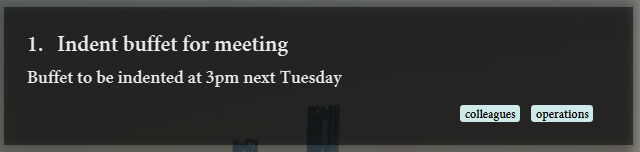
The index of the notes only applies to the currently displayed list, it is not tied to the note itself.
Both the People Panel and Notes Panel share a pool of tags to more easily relate a group of people to a specific note.
Check Notes Features to learn more about the commands you can execute related to notes.
Properties
Person Properties
Name
This is the name of the person to be recorded in the SectresBook. Two persons cannot have exactly the same name, but slight deviations are acceptable. Our team recognizes that many people may share the same name, so it is alright to use close aliases.
This property12 is compulsory to declare during initialisation6.
Only alphanumeric characters1 are accepted in this property12. Numbers are accepted in use as disambiguation, but may not exist as a standalone word without alphabets immediately before or following it. See examples below for a more specific overview.
This property12 can be identified in the GUI4 by the icon of the silhouette of a person.

- Identified by the prefix
name. - This is a valid property12 to find a person by using the
findcommand.
| Valid Examples |
Samuel WestJonathan Lee Wen XinJack Robert the 3rd3Lite M1k0ch1Elizabeth Wong n11
|
|---|---|
| Invalid Examples |
@*)^% (Non-alphanumeric characters are not accepted)Jack Robert the 3 (Number may not exist as a standalone word)Elizabeth Wong 11 (Number may not exist as a standalone word)Jonathan 25 Chin (Number may not exist as a standalone word)(25) Jonathan Chin (Non-alphanumeric characters cannot be used adjacent to numbers) |
Tip:
It is recommended to include the full name of the person instead of aliases for easier searching.
Phone
This is the phone number of the person to be recorded in the SectresBook. It is compulsory to declare this during initialisation6.
This property12 can be identified in the GUI4 by the icon of a mobile phone.

- Identified by the prefix
phone. - A phone number should contain only numbers and be at least 3 digits long.
- This is a valid property12 to find a person by using the
findcommand.
Please record the phone number by which the member is most easily contacted. You are not allowed to enter multiple phone numbers in this field.
Caution:
Ensure that no two persons have the same phone number! This is allowed in the program, but you may have difficulties contacting the person you want in the future.
This is the email address of the person to be recorded in the SectresBook. It serves mainly as a point of information regarding the person, and has no additional features tied to it. This property12 is compulsory to declare during initialisation6.
This property12 can be identified in the GUI4 by the icon of an envelope.

- Identified by the prefix
email. - Emails should be of the format
local-part@domainand adhere to the following constraints:
| Part | Constraint |
|---|---|
| Local part | The local-part should only contain alphanumeric characters1 and these special characters _, ., + and -. The local-part may not start or end with any special characters and special characters may not be adjacent to each other. |
| Domain name | The domain name is made up of domain labels separated by periods. The domain name must: - end with a domain label at least 2 characters long - have each domain label start and end with alphanumeric characters1 - have each domain label consist of alphanumeric characters1, separated only by hyphens, if any. |
The local part and domain part must be connected by an @ symbol.
Address
This is the residing address of the person. It serves mainly as a point of information regarding the person, and has no additional features tied to it. This property12 is compulsory to declare during initialisation6.
This property12 can be identified in the GUI4 by the icon of a house.

- Identified by the prefix
home. - There is no constraint on how the home address of a person should be written, as long as it is sufficiently understandable.
Note:
Please ensure that your SectresBook window can accommodate the length of the text. If you find the text being cut off and see ellipses ... showing, please resize the SectresBook window to fit the text.
Loan
This is amount of money that is owed by a person, or is to be paid to that person. This is a property12 that cannot be manipulated directly, but can only be edited with the editLoan command.
This property12 can be identified in the GUI4 by the icon of the hand holding two stacks of coins.

- A loan amount can be either negative, positive or zero.
- A positive value indicates an amount that the person has yet to pay to the organisation.
- A zero value indicates no outstanding loan.
- A negative value indicates an amount that should be paid back to the person.
- Loans can only take up numerical values.
- The maximum value this property12 can take is
$1,000,000,000,000.00(1 trillion dollars ). Similarly, the minimum value is-$1,000,000,000,000.00(negative 1 trillion dollars). This should be more than sufficient for general purpose use.
Loan History
A loan history is linked to the loans properties and describes the changes to the numeric values of the loans in detail. There is no way to declare this during initialisation6, but it can be modified by the editLoan command.
This property12 is represented as a descending list on the right side of the inspection panel.
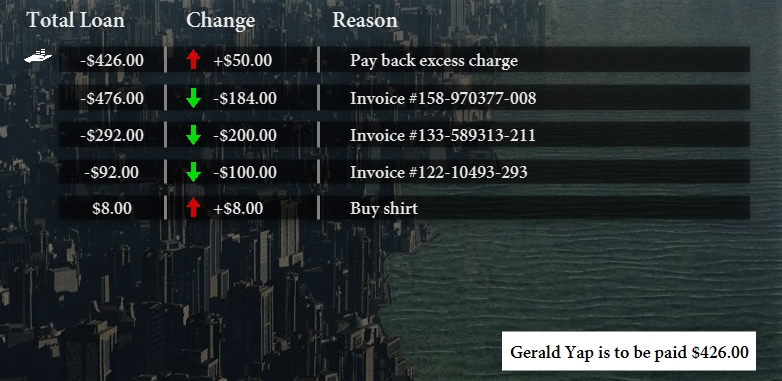
The most recent transaction is recorded at the top, on the row next to the loans icon.
The upward pointing red arrow signifies an amount loaned to this member in a transaction.

The downward pointing green arrow signifies an amount that this member has paid back in a transaction.

- Consists of the following sub-properties:
- Current loan value
- Change in amount from last value
- Reason for change
Tip:
Including a reason for every change to a person’s loan value reduces the risk of accidentally adding an incorrect amount to someone. It keeps a detailed tab of every increment and decrement in value.
Birthday
The birthday date of a person. This property12 is compulsory to declare during initialisation6.
This property12 can be identified in the GUI4 by the icon of a birthday cake.

- Identified by the prefix
bday. - Serves as a point of information for a person.
- This must be a valid date in the form
dd/MM/yyyy.
Tags
Persons can be linked to tag objects, which serve as markers that draw connections between different people as well as associated notes. This property12 is completely optional.
This property12 can be identified in the GUI4 by tag shaped labels with text inside them. They are usually located at the bottom right of each person card. If there is no such label, then it means this person has no associated tags.

Tip:
Choose short, identifiable tag names.
Caution:
There is no limit to how many tags you can apply to an individual person, but applying too many tags increases confusion and decreases user experience. Please choose the most relevant tags to apply only.
Tip:
Please refer to the Tag Properties below for more information regarding tags.
Notes Properties
Title
The title serves as the main marker for notes and summarises the important details of this specific note. This property12 is compulsory to declare during initialisation6.
It is the first line of a note card, which is bigger than the rest of the text.
Special characters are allowed in the title, but they will always be treated as a whitespace17 during operations. This is because punctuation is not normally a part of a word. This feature is relevant to findNote.
- This property12 is identified by the prefix
title. - Notes can be filtered through with the
findNotecommand using the title property12. - Titles must be within 100 characters and can contain any ASCII characters2.
- This property12 cannot be left empty.
Content
The content serves as the description for notes. This property12 is compulsory to declare during initialisation6.
This is immediately below the title and is in a smaller font size.
Tags
Notes can be linked to tag objects, which serve as markers that draw connections between different people as well as associated notes. This is an optional property12 for all notes.
This is located at the bottom right of the notes card. If there is no such label, then it means this note has no associated tags.
Tip:
Choose short, identifiable tag names.
Tip:
Please refer to the Tag Properties section below for more information regarding tags.
Tag Properties
A tag is used to group together specific People and Notes.
This way, searching for a tag brings up all the People and Notes that have the tag for easier classification of related information.
- Identified by the prefix
tag. - Tags can only consist of alphanumeric characters1.
- Persons and Notes can hold tags.
Features
Notes about the command format:
-
Words in
UPPER_CASEare the parameters to be supplied by the user.
e.g. inadd name/NAME,NAMEis a parameter which can be used asadd name/John Doe. -
Items in square brackets are optional.
e.gname/NAME [tag/TAG]can be used asname/John Doe tag/friendor asname/John Doe. -
<OR>signifies an exclusive-or parameter that is to be input.
e.gINDEX <OR> NAMEallows either the parameterINDEXor the parameterNAME, but not both -
Items with
… after them can be used multiple times including zero times.
e.g.[tag/TAG]…can be used as ` ` (i.e. 0 times),tag/friend,tag/friend tag/familyetc. -
Parameters can be in any order.
e.g. if the command specifiesname/NAME phone/PHONE_NUMBER,phone/PHONE_NUMBER name/NAMEis also acceptable. -
If a parameter is expected only once in the command but you specified it multiple times, only the last occurrence of the parameter will be taken.
e.g. if you specifyphone/12341234 phone/56785678, onlyphone/56785678will be taken. -
Extraneous parameters for commands that do not take in parameters (such as
help,list,exitandclear) will be ignored.
e.g. if the command specifieshelp 123, it will be interpreted ashelp.
Person Features
Adding a new person : add
Adds a person to the SectresBook. The new member will appear at the end of the persons’ list residing in the People Panel.
Format: add name/NAME phone/PHONE_NUMBER email/EMAIL home/ADDRESS bday/BIRTHDAY [tag/TAG]...
Tip:
A person can have any number of tags (including 0).
Examples:
add name/John Doe phone/98765432 email/johnd@example.com home/John street, block 123, #01-01 bday/01/04/2010 tag/Memberadd name/Jane Doe phone/98876542 email/jane@example.com home/That Street, block 133, #11-10 bday/05/11/1986 tag/Memberadd name/Neethesh tag/VicePresident email/neethesh@example.com home/Happy Avenue phone/91234567 bday/24/05/1998
Editing a club member : edit
Edits an existing club member’s information in the SectresBook.
Format: edit INDEX <OR> NAME [name/NAME] [phone/PHONE] [email/EMAIL] [home/ADDRESS] [bday/BIRTHDAY] [tag/TAG]…
Remember that all terms are optional for edit commands, but it must include at least one property12 to edit the person by.
If ambiguities by the keywords given exist, the persons’ list will auto-filter to display all matching persons that cause the ambiguity to arise. Please fine tune your search requirements, or use an index from here, to edit the person again.
Example of usage:
edit 1 phone/99999999 can be used to easily update the first person’s contact information.
edit John phone/91235555 can be used to update a person’s contact information if there exists only one person whose name contains John.
Note:
If no person is named John, or if more than one person has John in their name, then the operation is equivalent to find John.
Editing loan of a person : editLoan
Edits an existing club member’s loan amount in the SectresBook. Please note that the value must be either positive or negative values with up to 2 decimal places.
The absolute maximum amount for a loan is $1,000,000,000,000.00 (positive or negative 1 trillion). If you are intending to file more than a trillion dollars in total transactions, this application may not be a suitable one for you, as our expected clients do not normally transfer this much money.
Caution:
If the total amount after the editLoan command adds up to more than a trillion, the program will block the command from going through. You will be notified by the results display should such a command be attempted.
Format: editLoan INDEX <OR> NAME amt/VALUE reason/REASON
- Edits the loan value of the existing person at the specified
INDEX. - The index refers to the index number shown in the displayed person list.
- The index must be a positive integer 1,2,3 …
- The
VALUEcan be a positive or negative value with up to 2 decimal places. - The
VALUEmay not contain delimiters to separate digits, i.e.$1,000,000must be expressed as$1000000in the program. - The loan value will be changed by the value given i.e current loan +
VALUE.
Examples of usage:
editLoan 2 amt/30 reason/bought logisticseditLoan alex amt/-30 reason/return money from logistics-
listfollowed byeditLoan 1 amt/-20 reason/return moneywill edit the 1st person in the SectresBook, reducing their loan by $20 and saving theREASONasreturn money.
Note:
In the second example, if no person is named Alex, or if more than one person has Alex in their name, then the operation is equivalent to find alex.
Deleting a person : delete
Deletes the specified person from the SectresBook. Delete commands are irreversible, so please ensure that you are deleting the correct person.
Format: delete INDEX <OR> NAME
| Deleting by INDEX |
|
|---|---|
| Deleting by NAME |
|
Examples:
-
listfollowed bydelete 2deletes the 2nd person in the SectresBook. -
find Betsyfollowed bydelete 1deletes the 1st person in the results of thefindcommand. -
delete Betsydeletes the entry belonging to Betsy in the SectresBook. -
delete Lynettedoes not perform any operation, if Lynette does not exist in the SectresBook.
Tip:
To delete everyone at the same time, please refer to the clear command.
Locating persons by name or contact number : find
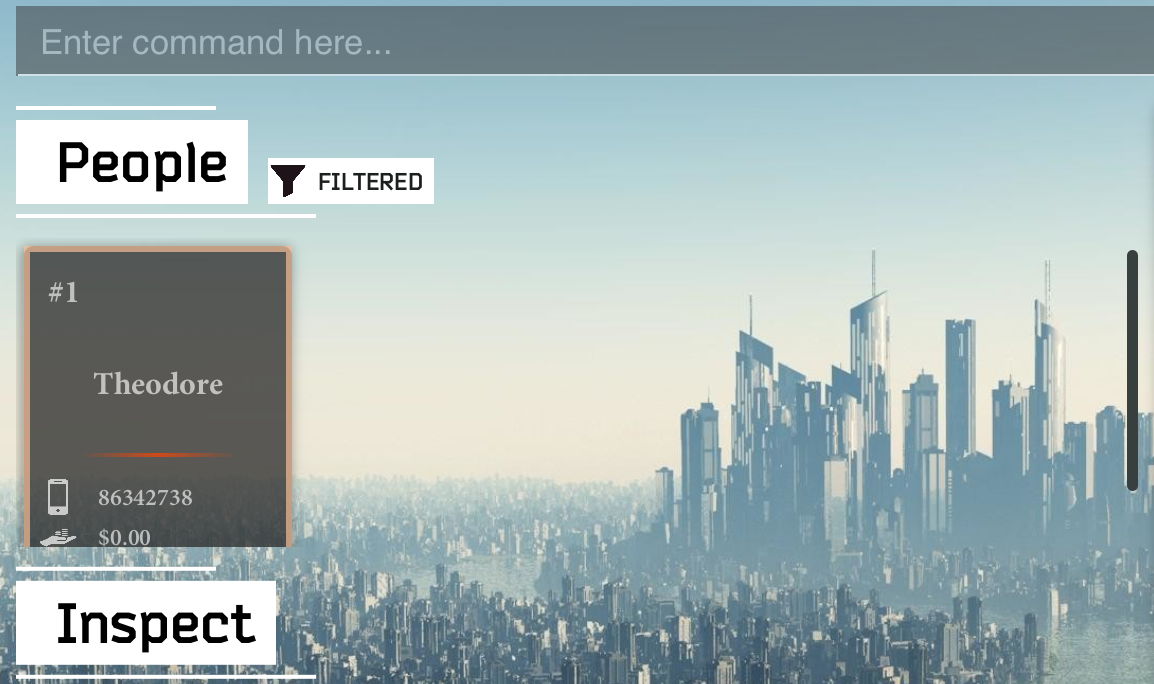
Finds persons whose names match any of the given keywords, or persons whose phone numbers start with any of the given keywords (in digits).
Note:
The People Panel will show a FILTERED indicator to inform you that the list has been filtered.

Format: find KEYWORD [MORE_KEYWORDS]
- The search is not case-sensitive. e.g
hanswill matchHans - The order of the keywords does not matter. e.g.
Hans Bowill matchBo Hans - Only the name is searched.
- Only full words will be matched e.g.
Hanwill not matchHans - Persons matching at least one keyword will be returned (i.e.
ORsearch). e.g.Hans Bowill returnHans Gruber,Bo Yang - Phone numbers starting with any of the given keywords (in digits), of at least 2 digits, will be returned.
Examples:
-
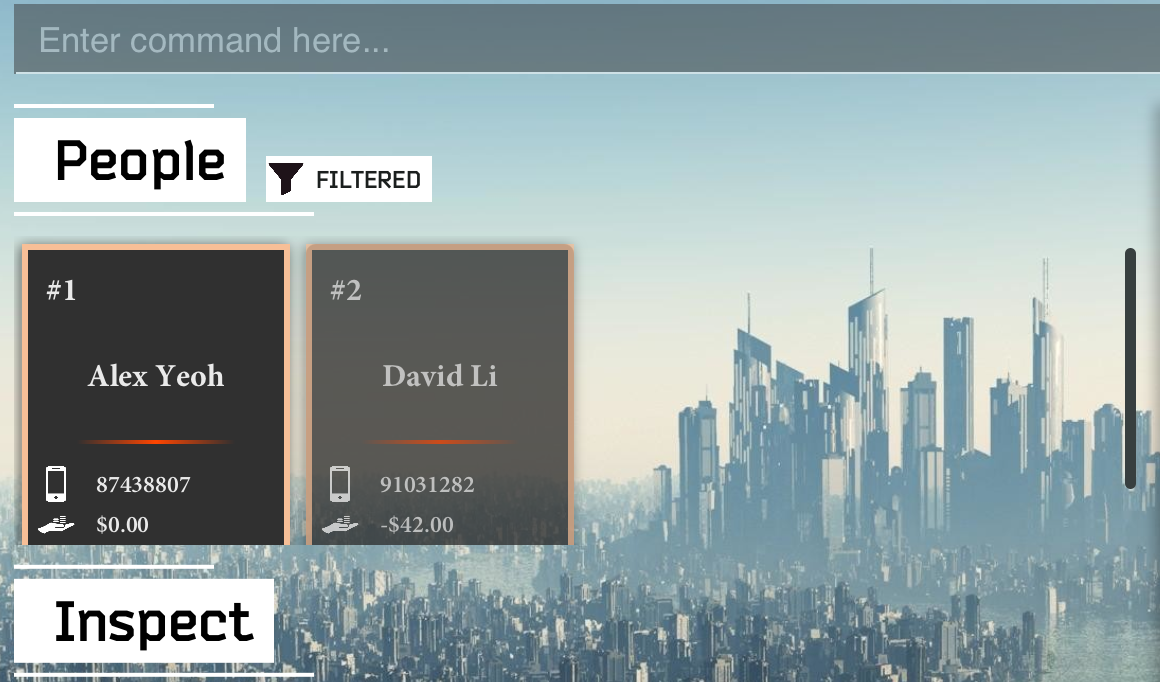
find alex davidreturnsAlex Yeoh,David Li
-
find 86returnsTheodore
-
find 8will not be accepted as a command, as searching by phone numbers must be of at least 2 digits.
Listing all persons : list
List of all persons in the SectresBook.
Note:
If the list was formerly filtered, the filter icon to the right of the person’s label will disappear.
Format: list
Sorting by property : sort [coming in v2.0]
Caution:
This command does not exist in the present version of the program that this User Guide is written for. It will not work if entered.
Sorts the members in the persons’ list by properties in either ascending or descending order.
Note Features
Adding Notes : addNote
Adds a note to the SectresBook.
Format: addNote title/TITLE content/CONTENT [tag/TAG]...
Tip:
TITLE must be unique and not longer than 100 characters. Tags are also optional.
Examples:
addNote title/Club meeting soon! content/Remind club members to attend meeting.addNote title/T-Shirt payment due content/Collect money tag/Juniors
Editing Notes : editNote
Edits an existing specified note in the SectresBook.
Format: editNote INDEX <OR> TITLE [title/TITLE] [content/CONTENT] [tag/TAG]...
Example of usage:
-
editNote 1 content/Second club meetingcan be used to easily update the first note’s contents. -
editNote alumni title/2020 alumni meetingcan be used to amend a note with the title “2020 alumni meeting”, only if it is the only note containing “alumni” in its title.
Deleting Notes : deleteNote
Deletes the specified note from the SectresBook. This operation is irreversible, so please ensure that the note you are about to delete is the correct one.
Format: deleteNote INDEX
- Deletes the note at the specified
INDEX. - The index refers to the index number shown in the displayed note list.
- The index must be a positive integer 1, 2, 3, …
Unlike other entities, you may not delete a note by name. This is to minimise errors in deletion as many notes may have similar names.
Examples:
-
listNotesfollowed bydeleteNote 2deletes the second note in the SectresBook.
Locating a note by title : findNote
Finds the notes whose titles match any of the given keywords.
Note:
The Notes Panel will show a FILTERED indicator to inform you that the list has been filtered.

The search is not case-sensitive. For example, meeting will match any notes containing the word Meeting. As in find for persons, the order of the keywords also does not matter, and Meeting Club will also match a note called Club Meeting.
Please be informed that only the title will be search. Contents will not be searched through this command.
Although the title may contain special characters such as ,, ., ? or !, these special characters are not accepted as part of a keyword. This is because punctuation are not normally associated as part of a word. During the parsing of the title, special characters are treated as spaces, so adjacent segments of the word containing it are treated as separate words.
- The keywords
?!andt-shirtwill not be allowed, as they contain special characters. -
2will matchshirt 2but will not matchshirt2, asshirt2is an entire word by itself. - To search for
Upcoming club meeting!,meeting!is not allowed as a keyword as it contains a special character, butmeetingis allowed. -
tshirtwill not matcht–shirtast-shirtis now treated as two words,tandshirtwith the special character-being treated as a spacing.
Format: findNote KEYWORD [MORE_KEYWORDS]
Examples:
-
findNote MeetingreturnsClub Meeting,Meeting!andMeeting 2 -
findNote SoonreturnsPayment (soon)
Listing Notes : listNote
Shows a list of all notes in the SectresBook.
Note:
If the notes list was previously filtered, the filter icon will disappear to indicate that you are now looking at the full list.
This command, unlike many others, does not take in any parameters10.
Format: listNote
Examples:
listNote
Sorting Notes : sortNotes [coming in v2.0]
Caution:
This command does not exist in the present version of the program that this User Guide is written for. It will not work if entered.
Sorts the notes in either ascending or descending order by title.
Hiding notes panel : hideNotes
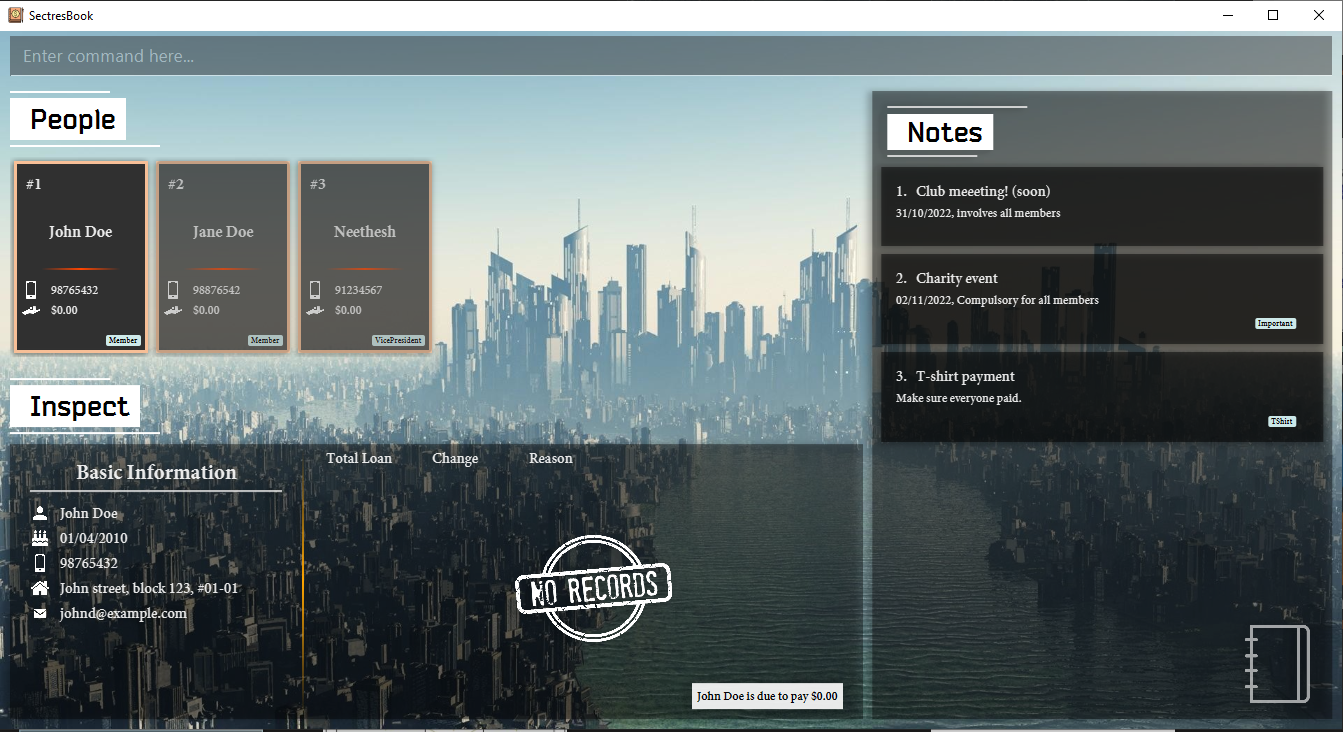
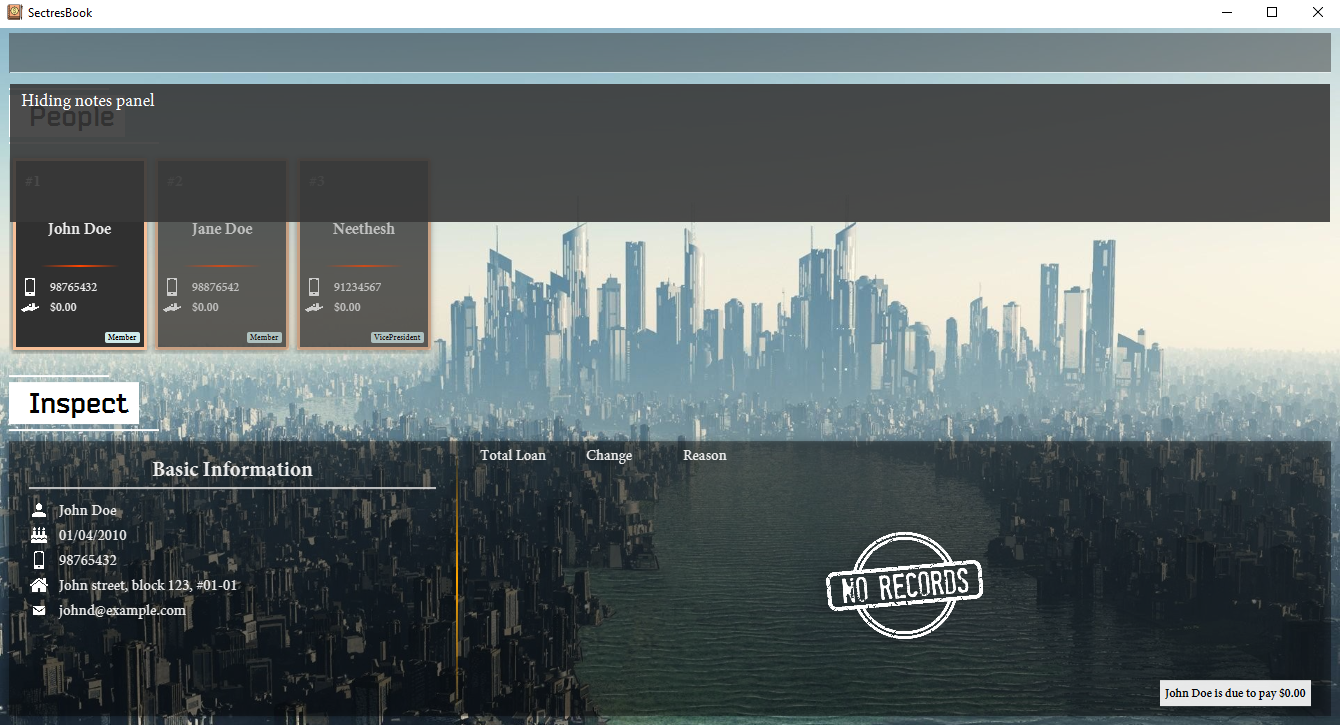
Hides the notes panel to the right side of the screen if visible, otherwise, no operation is performed. Use this command if you do not wish to see the notes view while you are working with information related to the members only.
Note:
Even though the notes panel may be hidden, operations on notes will still work as normal. This is purely a visual feature.
Format: hideNotes
Example:
Initial view:
After executing hideNotes:
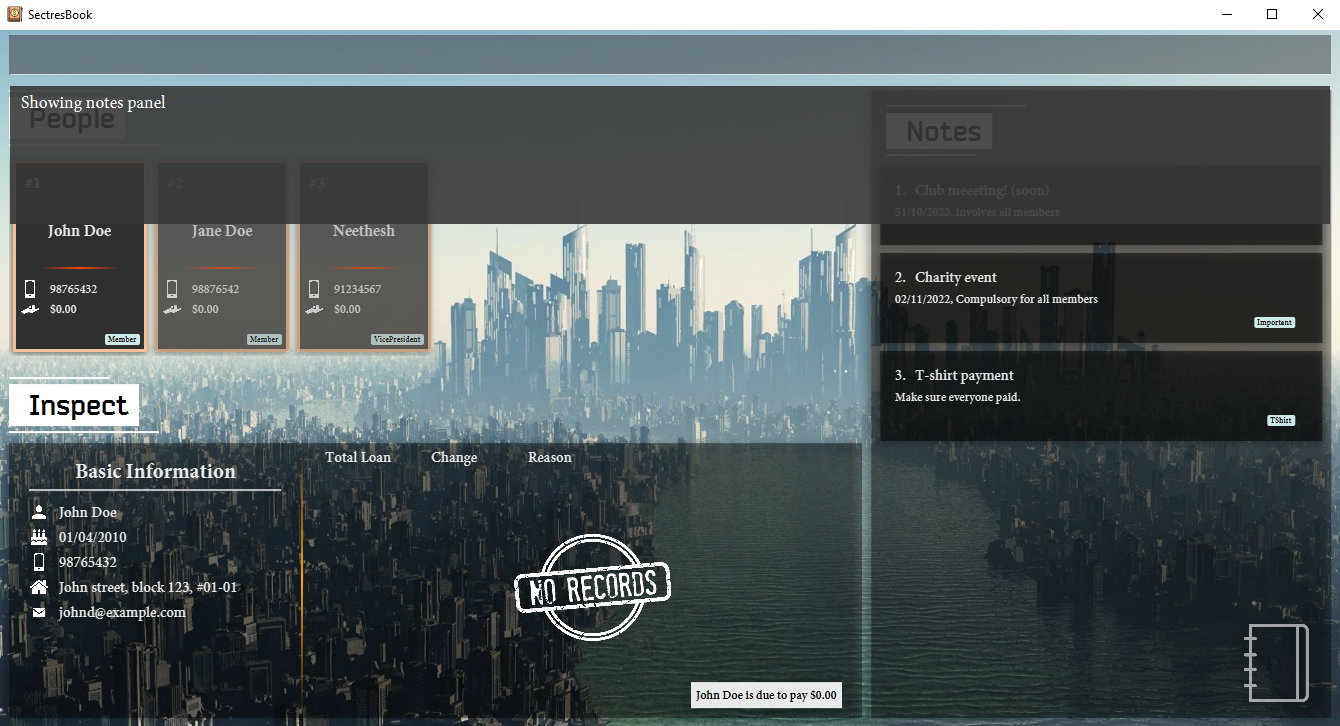
Showing notes panel : showNotes
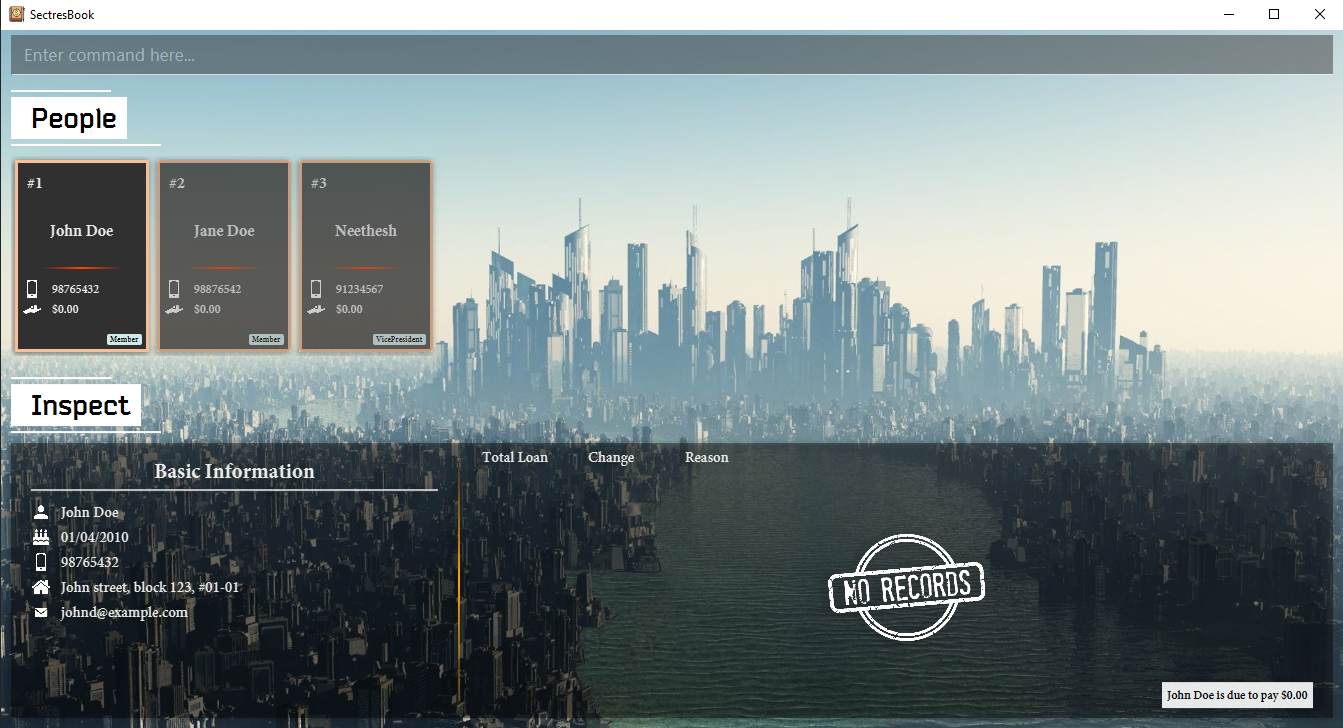
Slides the notes panel into view if hidden, otherwise, no operation is performed.
Format: showNotes
Example :
Initial view:
After executing showNotes:
Note:Q Why are
hideNotes and showNotes in plural, but the rest of the operations in singular nouns?A
hideNotes and showNotes are a separate class of commands that are UI-Centric, meaning that they only operate on the user interface, as they only shift a panel in the UI, and do not modify any underlying data of the application. The pluarity of the command disambiguates its usage from the other commands that mutates data. For more information, please read our developer guide.
<p>To ease interpretation, you may read showNotes as “show the notes panel“ or hideNotes as “hide the notes panel“, while listNote may be read as “list each individual note“, findNote as “find each note matching” and editNote as “edit this note“.
General Features
Locating persons and notes by tag : findTag
Finds People and Notes that have the given tags. Both the People Panel and Notes Panel will be updated synchronously with all entities that match the specifiers.
Note:
Both the People Panel and Notes Panel will show a FILTERED indicator to inform you that both lists have been filtered.
Format: findTag TAG [MORE_TAGS]
- The tag search is not case-sensitive. e.g
financewill matchFinance - Only tags are searched.
- Only full words will be matched e.g.
Techwill not matchTechnology - Persons and Notes matching at least one tag will be returned (i.e.
ORsearch). e.g.Operations Financewill return- Person
Alex Yeoh(tag: Friends) (tag: Operations), - Person
Charlotte Oliveiro(tag: Colleagues) (tag: Finance), - Note
Collect funds from operations team(tag: Operations)
- Person
Examples:
-
findTag Operations Financereturns PersonAlex Yeoh, PersonCharlotte Oliveiroand NoteCollect funds from operations team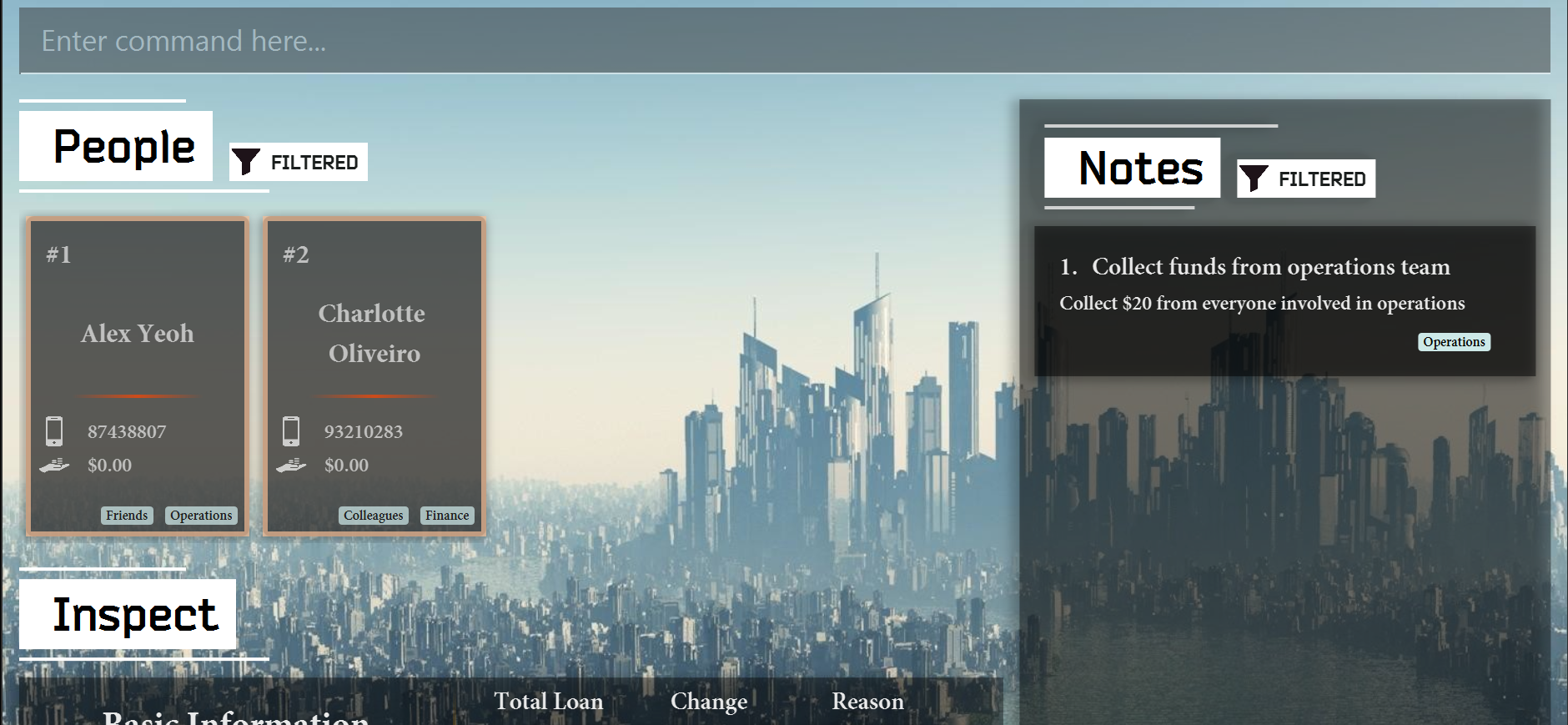
Inspecting a person : inspect
Updates the Inspect Panel with the basic information and loan history of the person inspected.
Inspection is a UI-centric command that operates on the currently viewed person’s list, so you may only inspect those that are presently listed.
If you wish to view the properties of anyone in the full list, please remember to specify list to clear the filter.
Note:
If there are multiple people in the list satisfying the keywords given, it will, by default, inspect the first person that matches the keywords.
You may wish to use more unique keywords to reduce ambiguity, or inspect by an index.
Format: inspect INDEX <OR> NAME
Examples:
-
inspect 2inspects the second person in the list of people -
inspect Lynettewill attempt to find the first person calledLynettein the currently filtered persons’ list and update the Inspect Panel with her information.
Caution:
If you are trying to inspect a person by name, who does not exist in the currently viewed person list, which may be filtered, it will not be successful. This is because inspect only works on the currently viewed list.
Viewing help : help
Shows a message explaining how to access the help page.

Copy the link to your clipboard by clicking the Copy URL button and paste it in your favourite browser to come back to this page anytime.
Format: help
Clearing all entries : clear
Clears all entries of people and notes from the SectresBook. This command is irreversible. This effectively restarts the app from a blank slate.
Format: clear
Exiting the program : exit
Exits the program.
Format: exit
Note:
Your data is saved automatically.
Saving the data
SectresBook data is saved in the hard disk automatically after any command that changes the data. There is no need to save manually.
Editing the data file
SectresBook data is saved as a JSON file8 at [JAR file location]/data/sectresbook.json. Advanced users are welcome to update data directly by editing that data file.
Caution:
If your changes to the data file makes its format invalid, SectresBook will discard all data and start with an empty data file at the next run.
Archiving data files [coming in v2.0]
Caution:
This command does not exist in the present version of the program that this User Guide is written for. It will not work if entered.
Copies the current data file as a new file in the HOME_FOLDER_LOCATION/archives folder. This file may be used as a saved checkpoint to load past information into the SectresBook.
Undo [coming in v2.0]
Caution:
This command does not exist in the present version of the program that this User Guide is written for. It will not work if entered.
Undoes the last command that the user has inputted, setting the state of the saved data to an earlier state.
Redo [coming in v2.0]
Caution:
This command does not exist in the present version of the program that this User Guide is written for. It will not work if entered.
Pushes the state of the program to the later state if it was set back to an earlier state by the undo command. If the present state is the most recent state, no operation is performed.
Note:
Note that performing undo commands and inputting a new command after will set the present state to the most recent state. No redo commands may be performed subsequently.
FAQ
Q I cannot see any images in this document, what is wrong?
A You are likely viewing the document in dark mode. The images are in black as their main color, please view this document in light mode instead.
Q: How do I transfer my data to another Computer?
A: Install the app in the other computer and overwrite the empty data file it creates with the previous SectresBook data file.
Q: Double-clicking the jar file does not open the jar file, why does this happen?
A: Make sure that Java 117 is installed on your computer. You may also open the terminal15 and type in java -jar SectresBook.jar.
Q Do I need to have Java installed to run SectresBook?
A Yes, SectresBook runs on Java and would require it to work. For more information on how to install Java 117, visit this website.
Q What can I can do if the window size is too small?
A Drag the window of the application with your mouse to enlarge it, or simply click the top right maximise icon of the window.
Q Why can’t I see the full address of the person I am inspecting?
A Your window is too small to accommodate the full label text, please resize your window either wider or taller so that the full text can be displayed.
Q I have entered a command, but there is no response from the program, why did this happen?
A A critical error may have occurred. You may likely be able to continue your usage of the program. Please review your terminal15 output and file a bug report on our issues page, detailing a description of the bug as well as the steps to reproduce, attaching screenshots if any.
Q Do I require an internet connection to use SectresBook?
A No, SectresBook fully works without the need for internet connection.
Q I have an existing data file but the app does not show any of the information, what is wrong?
A Your data file is corrupted. If you know how to, please open the JSON data file8 in a text editor and remove the offending data. Otherwise, please refer to someone who knows how to remedy a corrupted data file.
Q Who can I contact for questions regarding this version of the program if the information I need cannot be found in this guide?
A Please contact the person from whom you obtained this present version from, or contact any of our developers (links to Github):
| Rui Han | Pinran | Ryan | Neethesh | Zhong Wei |
Glossary
The definitions in this glossary are context-specific to this application.
| No. | Word | Definition |
|---|---|---|
| 1 | Alphanumeric Characters | A combination of alphabetical and numerical characters |
| 2 | ASCII Characters | Characters from the American Standard Code for Information Interchange character encoding standard |
| 3 | Command Line Interface (CLI) | A text-based interface that receives typed commands as input and returns textual feedback as output. |
| 4 | Graphical User Interface (GUI) | An image-based interface that is more visually appealing than a command-line interface and encapsulates information through the use of icons and images. |
| 5 | Home Folder | The folder that SectresBook is located in. It is also where SectresBook will store its data |
| 6 | Initialisation | The moment when a Person or Note is created and added into SectresBook. |
| 7 | Java 11 | Eleventh version of the Java Platform, Standard Edition Development Kit (JDK). SectresBook requires this to be installed to run. |
| 8 | JSON data file | A data file that uses the JavaScript Object Notation format. |
| 9 | Loan | An amount of money that is borrowed by or owed to a person. A positive value signifies an amount owed by the person and a negative value signifies an amount to be paid to that person. |
| 10 | Parameter | A value passed as a section of a command, typically following a prefix. |
| 11 | Prefix | A signposting word that indicates the kind of property (i.e. name, email, address, etc), which typically follows immediately after the prefix, that is to be passed as a parameter. |
| 12 | Property | An identifiable feature a person or object has that sufficiently distinguishes it from other objects of the same kind. |
| 13 | Secretary | A person that manages the tasks and events related to the operations of an organisation. |
| 14 | Tag | A label that groups related people together, such that they can be referred to as a single encapsulated entity specified by the tag. |
| 15 | Terminal | A text-based interface to the computer |
| 16 | Treasurer | A person that manages the finances and monetary transactions related to the operations of an organisation. |
| 17 | Whitespace | A space character
|
Summary
Person Properties
| Person Properties | ||
|---|---|---|
| Properties | Examples | |
| Compulsory Properties | Name | Captain Daniel Patrick the 5th |
| Phone | 99123510 |
|
| Address | Canopy Street 11 Blk 709, #20-112 |
|
capt_daniel.patrick-the+5th@example.com |
||
| Birthday | 09/12/2000 |
|
| Optional Properties | Loan | Cannot be declared, used by loan history |
| Loan History | An amount of $55 with a reason of "To buy a porcelain vase"
|
|
| Tags |
Coworkers; Friends; Operations
|
|
Person Commands
| Action | Format | Examples |
|---|---|---|
| Add a person | add name/NAME phone/PHONE_NUMBER email/EMAIL home/ADDRESS bday/BIRTHDAY [tag/TAG]… |
add name/James Ho phone/22224444 email/jamesho@example.com home/123, Clementi Rd, 1234665 bday/01/01/2000 tag/friend tag/colleague |
| Edit a person | edit INDEX <OR> NAME [name/NAME] [phone/PHONE] [email/EMAIL] [home/ADDRESS] [bday/BIRTHDAY] [tag/TAG]… |
edit 2 name/James Lee email/jameslee@example.com |
| Edit the loan of a person | editLoan INDEX <OR> NAME amt/VALUE reason/REASON |
editLoan 1 amt/-20 reason/Buy Logistics |
| Delete a person | delete INDEX <OR> NAME |
delete 3 delete Jane
|
| Find a person | find KEYWORD [MORE_KEYWORDS] |
find James Jake find 8651
|
| List every person | list |
list |
Notes Properties
| Notes Properties | ||
|---|---|---|
| Properties | Examples | |
| Compulsory Properties | Title | Organise a charity to raise money for the foundling hospital |
| Content | Target $50,000 - by 23rd of December. We're aiming to attract at least 1000 contributors. |
|
| Optional Properties | Tags |
Coworkers; Friends; Operations
|
Notes Commands
| Action | Format | Examples |
|---|---|---|
| Add a Note | addNote title/TITLE content/CONTENT [tag/TAG]... |
addNote title/Create Excel Sheet content/Create sheet for blockchain department |
| Edit a Note | editNote INDEX <OR> TITLE [title/TITLE] [content/CONTENT] [tag/TAG]... |
editNote 1 title/Check meeting availability tag/president |
| Delete a Note | deleteNote INDEX |
deleteNote 1 |
| Find a Note | findNote KEYWORD [MORE_KEYWORDS] |
findNote meeting |
| List Every Note | listNote |
listNote |
| Hide Notes Panel | hideNotes |
hideNotes |
| Show Notes Panel | showNotes |
showNotes |
General Commands
| Action | Format | Examples |
|---|---|---|
| Find Tag | findTag TAG [MORE_TAGS] |
findTag Operations Outreach |
| Inspect | inspect INDEX <OR> NAME |
inspect 1 or inspect Alex
|
| Help | help |
help |
| Clear all data | clear |
clear |
| Exit | exit |
exit |