Developer Guide
Table of Contents
- Acknowledgements
- Overview
- Setting up, getting started
- Design
- Properties Objects
- Implementation
- Documentation, logging, testing, configuration, dev-ops
- Appendix
Acknowledgements
The background of the program is a large-scale city, attributed to GiulioDesign94’s Big City.
The icon of this program is an edited image from DepositPhotos, found here.
This team recognises the rights to the images go to their respective owners.
Overview
SectresBook helps secretaries to maintain all the information of the members of their club by collating a list of identifiable information, past loan records and future tasks.
Our main target audience is secretaries, but this may be expanded to any person in need of loan tracking and task tracking features provided by our software.
This Developer Guide is written for maintainers of SectresBook.
Designers and developers who wish to extend or morph this product may also use this documentation to gain a better understanding of the design of this software.
Setting up, getting started
Refer to the guide Setting up and getting started.
Design
 Tip: The
.puml files used to create diagrams in this document can be found in the diagrams folder. Refer to the PlantUML Tutorial at se-edu/guides to learn how to create and edit diagrams.
Architecture
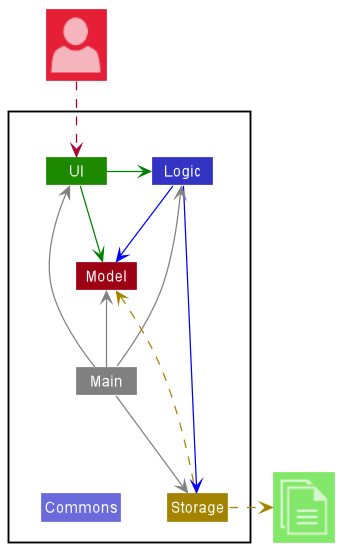
The Architecture Diagram given above explains the high-level design of the App.
Given below is a quick overview of main components and how they interact with each other.
Main components of the architecture
Main has two classes called Main and MainApp. It is responsible for,
- At app launch: Initializes the components in the correct sequence, and connects them up with each other.
- At shut down: Shuts down the components and invokes cleanup methods where necessary.
Commons represents a collection of classes used by multiple other components.
The rest of the App consists of four components.
-
UI: The UI of the App. -
Logic: The command executor. -
Model: Holds the data of the App in memory. -
Storage: Reads data from, and writes data to, the hard disk.
How the architecture components interact with each other
The Sequence Diagram below shows how the components interact with each other for the scenario where the user issues the command delete 1.
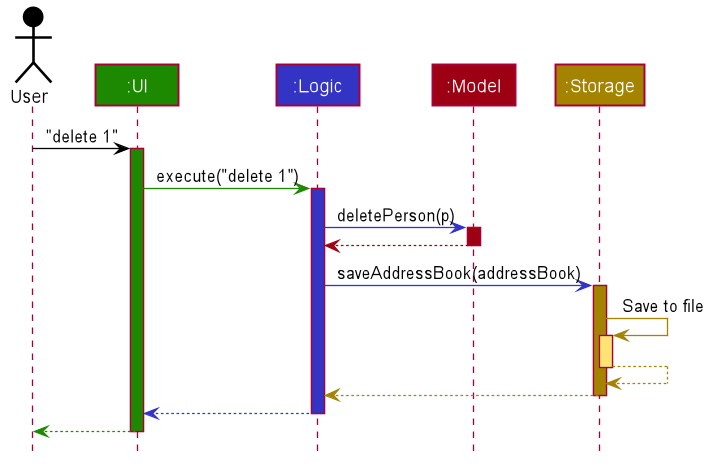
Each of the four main components (also shown in the diagram above),
- defines its API in an
interfacewith the same name as the Component. - implements its functionality using a concrete
{Component Name}Managerclass (which follows the corresponding APIinterfacementioned in the previous point.
For example, the Logic component defines its API in the Logic.java interface and implements its functionality using the LogicManager.java class which follows the Logic interface. Other components interact with a given component through its interface rather than the concrete class (reason: to prevent outside component’s being coupled to the implementation of a component), as illustrated in the (partial) class diagram below.
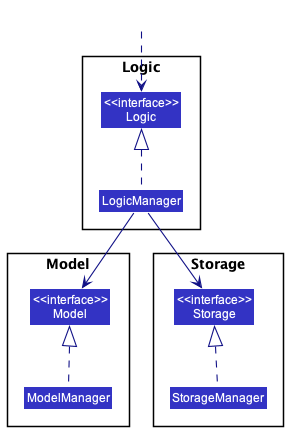
The sections below give more details of each component.
UI component
The API of this component is specified in Ui.java
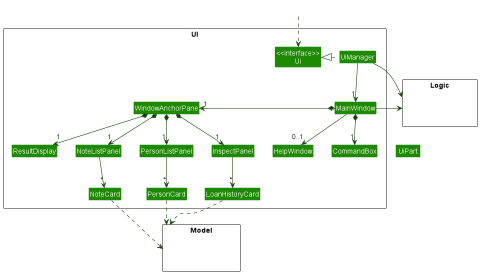
The UI consists of a MainWindow that is made up of parts e.g.CommandBox, ResultDisplay, PersonListPanel, NoteListPanel, PersonInspectPanel StatusBarFooter etc. All these, including the MainWindow, inherit from the abstract UiPart class which captures the commonalities between classes that represent parts of the visible GUI.
The UI component uses the JavaFx UI framework. The layout of these UI parts are defined in matching .fxml files that are in the src/main/resources/view folder. For example, the layout of the MainWindow is specified in MainWindow.fxml
The UI component is separate from the state of the Model and changes to the UI will not affect the Model, but changes to the Model’s state will affect the information displayed by the UI elements.
Similarly, changes to the visual aspects of UI, such as current person viewed, or the filtered state of the lists, will not be saved to file as they do not affect the Model’s data.
The UI component,
- executes user commands using the
Logiccomponent. - listens for changes to
Modeldata so that the UI can be updated with the modified data. - keeps a reference to the
Logiccomponent, because theUIrelies on theLogicto execute commands. - depends on some classes in the
Modelcomponent, as it displaysPersonandNotesobject residing in theModel.
This component may be controlled by commands through the CommandResult class, which specifies an optional UiState that the program should be in at the end of the command execution. This is parsed finally in the MainWindow::executeCommand which invokes necessary changes to the UI.
For more information related to the implementation of the UI, please review the section UI Features.
UI Elements
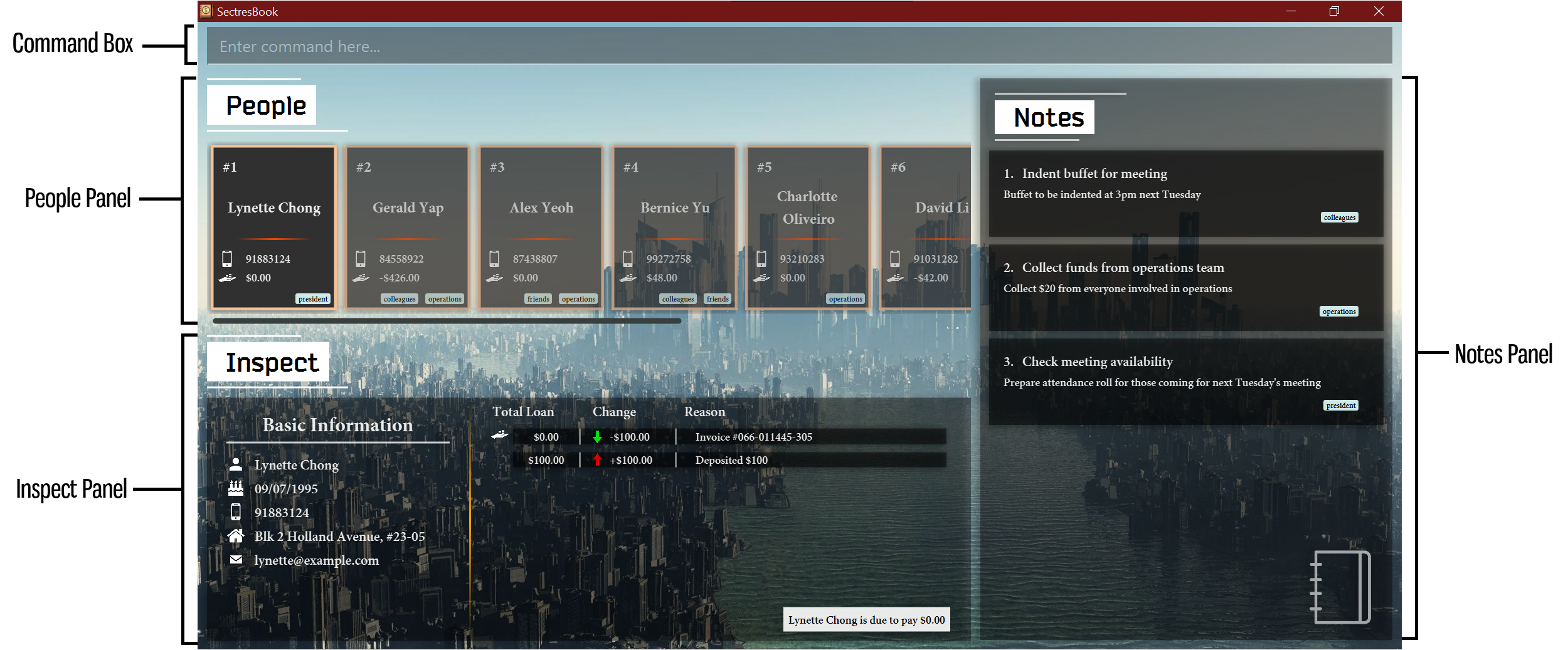
- Command Box: A text box that allows users to enter in commands for later execution.
-
ResultDisplay: A readonly text box that serves as a console to give feedback from the
Logiccomponent to the user, such as error messages or logs. - Person List: A horizontal sliding list that displays all persons in the SectresBook. This list can be filtered to display only relevant people according to some predicate.
- Note List: A vertical sliding list that displays all notes in the SectresBook. This list can be filtered to display only relevant notes according to some predicate.
-
Person Inspect Panel: This Panel displays data of a person, using the UI command
inspect.
Logic component
API : Logic.java
Here’s a (partial) class diagram of the Logic component:
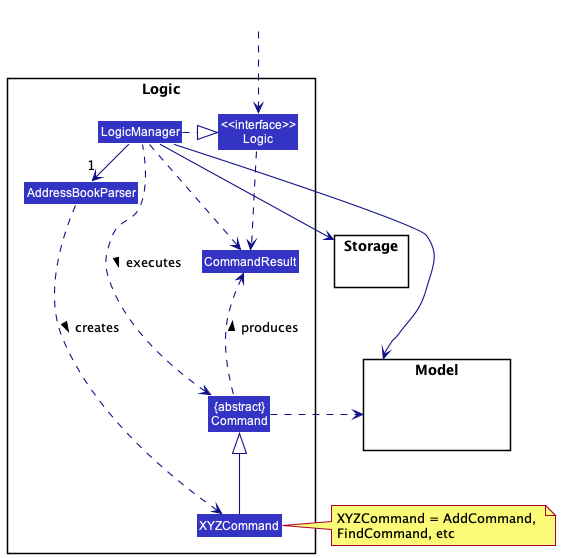
How the Logic component works:
- When
Logicis called upon to execute a command, it uses theAddressBookParserclass to parse the user command. - This results in a
Commandobject (more precisely, an object of one of its subclasses e.g.,AddCommand) which is executed by theLogicManager. - The command can communicate with the
Modelwhen it is executed (e.g. to add a person). - The result of the command execution is encapsulated as a
CommandResultobject which is returned back fromLogic.
The Sequence Diagram below illustrates the interactions within the Logic component for the execute("delete 1") API call.
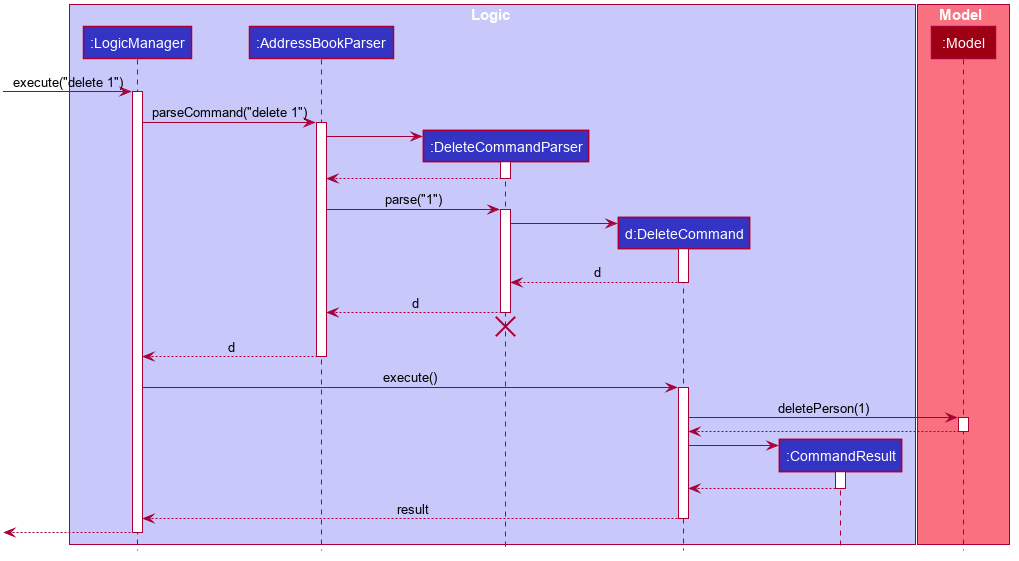
 Note: The lifeline for
DeleteCommandParser should end at the destroy-marker (X) but due to a limitation of PlantUML, the lifeline reaches the end of diagram.
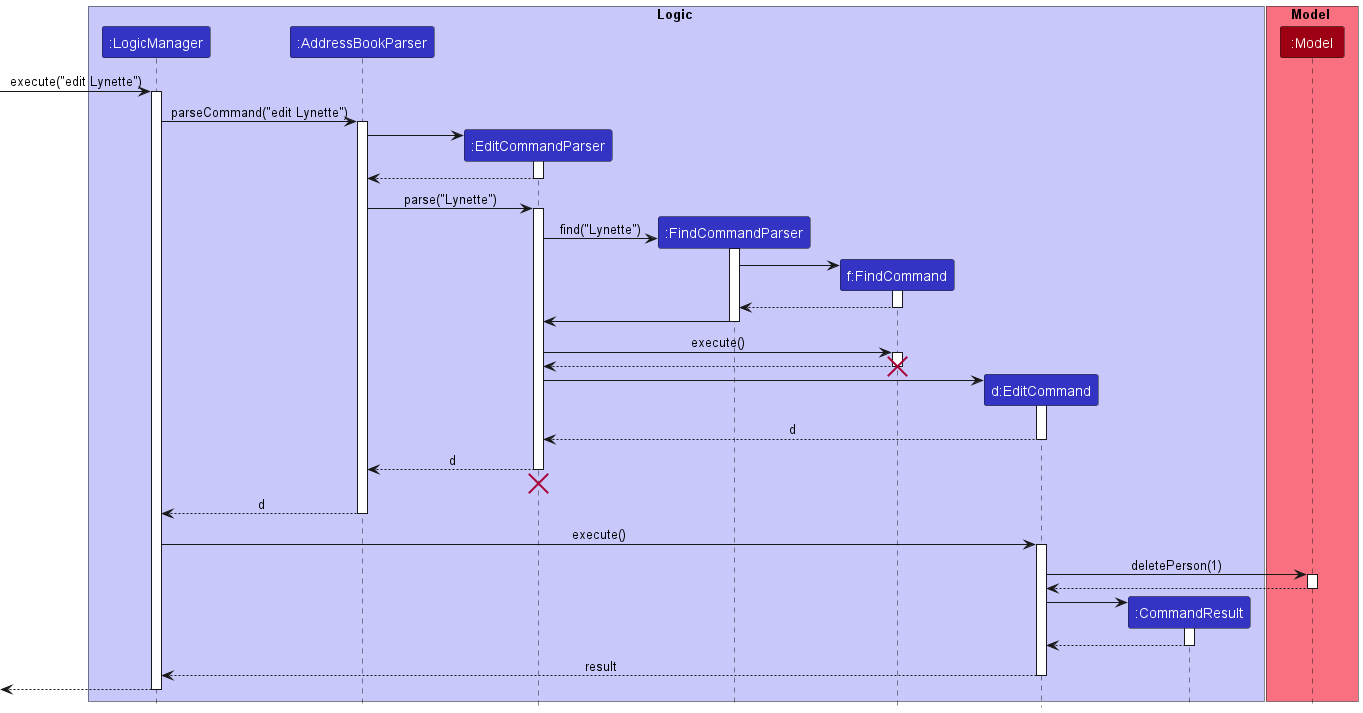
Commands such as Edit and Delete feature the ability to delete by name, which utilises the Find feature. Illustrated here is how execute("edit Lynette") interacts with the Logic component, using a sequence diagram
Here are the other classes in Logic (omitted from the class diagram above) that are used for parsing a user command:
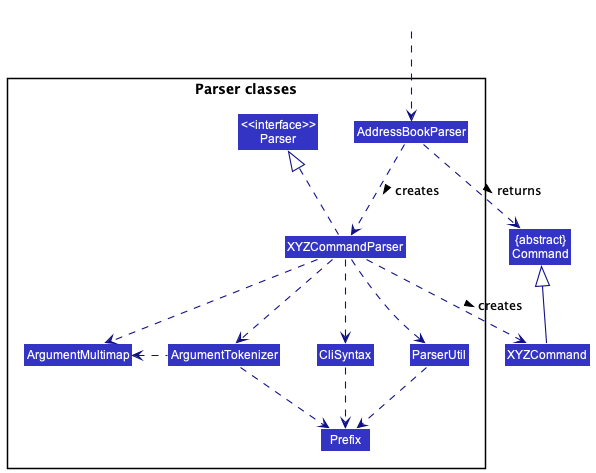
How the parsing works:
- When called upon to parse a user command, the
AddressBookParserclass creates anXYZCommandParser(XYZis a placeholder for the specific command name e.g.,AddCommandParser) which uses the other classes shown above to parse the user command and create aXYZCommandobject (e.g.,AddCommand) which theAddressBookParserreturns back as aCommandobject. - All
XYZCommandParserclasses (e.g.,AddCommandParser,DeleteCommandParser, …) inherit from theParserinterface so that they can be treated similarly where possible e.g, during testing.
Model component
API : Model.java
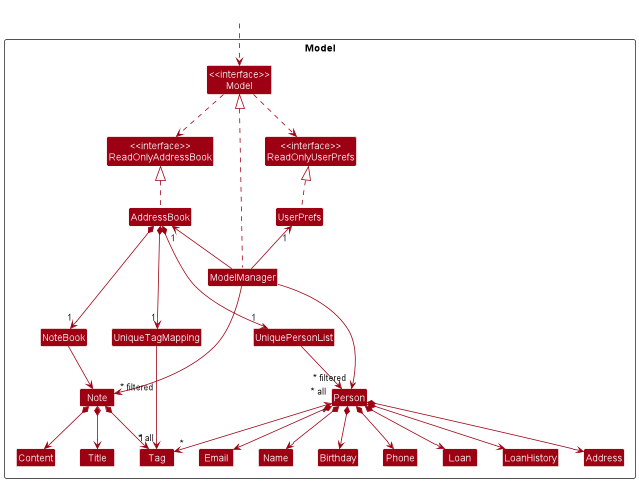
The Model component,
- stores the address book data i.e., all
Personobjects (which are contained in aUniquePersonListobject) and allNoteobjects (contained in aNoteBookobject) - stores the currently ‘selected’
Personobjects (e.g., results of a search query) as a separate filtered list which is exposed to outsiders as an unmodifiableObservableList<Person>that can be ‘observed’ e.g. the UI can be bound to this list so that the UI automatically updates when the data in the list change. - stores a
UserPrefobject that represents the user’s preferences. This is exposed to the outside as aReadOnlyUserPrefobjects. - does not depend on any of the other three components (as the
Modelrepresents data entities of the domain, they should make sense on their own without depending on other components)
Storage component
API : Storage.java
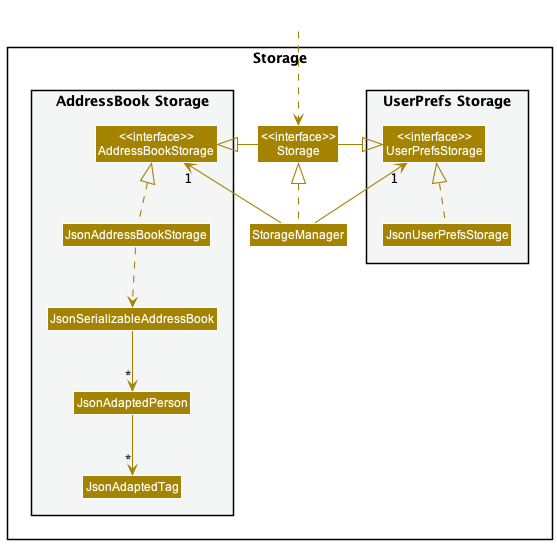
The Storage component,
- can save both address book data and user preference data in json format, and read them back into corresponding objects.
- inherits from both
AddressBookStorageandUserPrefStorage, which means it can be treated as either one (if only the functionality of only one is needed). - depends on some classes in the
Modelcomponent (because theStoragecomponent’s job is to save/retrieve objects that belong to theModel)
Common classes
Classes used by multiple components are in the seedu.addressbook.commons package.
Properties Objects
Properties of Person Objects
This section explains the components of a person object and how they can be used to track information.

A person object contains editable properties:
- Name
- Describes the full name of the person
- Phone
- Records the mobile phone contact number of the person
- Email
- Records the email address of the person
- Address
- Records the home address of the person
- Birthday
- Records the birthday of the person
- Tag
- Optionally tags the person with a variable number of tags for easy reference within the SectresBook.
And a non-editable properties:
- Loan
- Tracks the current loan amount of the person. A positive number means that the person currently owes money to the club, a negative number means that money is due to be paid to the person.
- List of Loan Histories
- Tracks the transactional history of incoming and outgoing loans. Each Loan History comprises a Loan and a Record.
During instantiation, a person object can be declared with all fields, but during editing, Loan must use a specialised command editLoan to transform its data.
Properties of Note Objects
This section explains the components of a note object and how they can be used to track information.
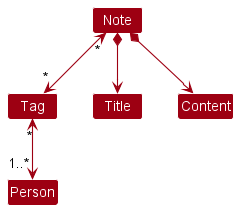
A note object contains editable properties:
- Title
- The title of the note, which can be searched by.
- Content
- The description of the note.
- Tags
- Optional tags that can be assigned to the notes, after-which every person with that tag will be associated with the notes.
During instantiation, a note object can be declared with any of these properties.
Implementation
This section describes some noteworthy details on how certain features are implemented.
Person Features
Edit Person
The Edit Person feature is facilitated by the EditCommand which utilises the FindCommand. It allows users to edit any editable field of a person given the index of the person, or the name of the person.
If given a name that does not correspond to any person in the SectresBook, the edit features performs the same operations as the Find command.
Given below is an example usage scenario and how the edit mechanism behaves at each step.
Step 1. The user enters the edit command, with either the index or the person’s name.
Step 2a If an index is entered, the EditCommandParser carries this index to the EditCommand, which retrieves the Person to edit by getting the Model’s current FilteredList<Person> and retrieving by index.
Step 2b. If a non-number is entered, the EditCommandParser invokes the FindCommandParser#parse method and executes it at the same time with FindCommand#execute. The FilteredList<Person> is then checked to ensure that there is exactly one person that corresponds with the search term. Otherwise, the method short-circuits with ambiguity errors (more than 1 person) or invalid person errors (no persons at all). If successful, EditCommandParser returns a new EditCommand with a one-based-index of 1.
- Example of ambiguity error message:
There is more than 1 person with the name [NAME]
- Example of invalid name error message:
There is nobody with the name [NAME]
Step 3. EditCommand#execute is called by the LogicManager. The person to edit is retrieved by the index given and a new edited person is created by copying over non-transformed fields and replacing the transformed field.
Step 4. The editedPerson is then set to replace the previous state of the Person object in the Model with Model#setPerson.
The following sequence diagram shows how the edit feature works.
Delete Person
The delete person feature is facilitated by DeleteCommand. It allows users to delete a person from the SectresBook that match the full
First name or Last name of the person.
Given below is the example usage scenario and how the delete feature behaves at each step.
Step 1. The user executes ‘delete David’ command to delete a person with the name ‘David’ from the SectresBook.
Step 2. The DeleteCommandParser creates a FindCommand with ‘David’.
Step 3. The DeleteCommand is executed with Index 1.
The following sequence diagram shows how the delete command works:
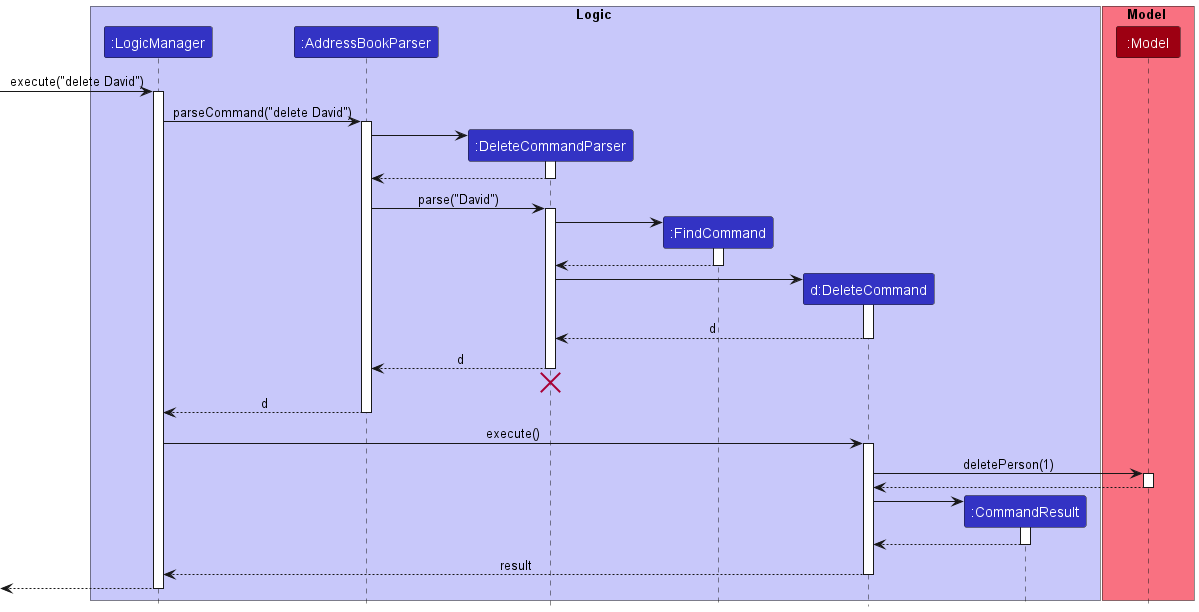
Note: The lifeline for DeleteCommandParser should end at the destroy marker (X)
but due to a limitation of PlantUML, the lifeline reaches the end of diagram. Design Considerations:
Aspect: How delete executes:
-
Alternative 1 (Currect choice): Deletes person based on complete first/last name from input.
- Pros: Less strictness of input from the user to delete a person.
- Cons: User may accidentally delete a person not meant to be deleted.
-
Alternative 2: Delete a person based on complete name i.e. first and last name required in input.
- Pros: Stricter input requirement, ensuring that persons are not accidentally deleted.
- Cons: Longer input required for the same output.
Find Person
The Find Person feature is facilitated by ‘FindCommand’. It allows users to find all Persons with names that are matching or phone number starting with any of the keywords.
Given below is an example usage scenario and how the find feature behaves at each step.
Step 1. The user executes ‘find David’ command to find all Persons in the address book that includes the name David.
Step 2. A FindCommand is constructed with a NameContainsKeywordPredicate which checks through the list of persons in the address book and only shows those with their first/last name matching David.
Step 3. The FindCommand is executed and the NameContainsKeywordsPredicate is used to update the filtered person list.
The following sequence diagram shows how the find command works:
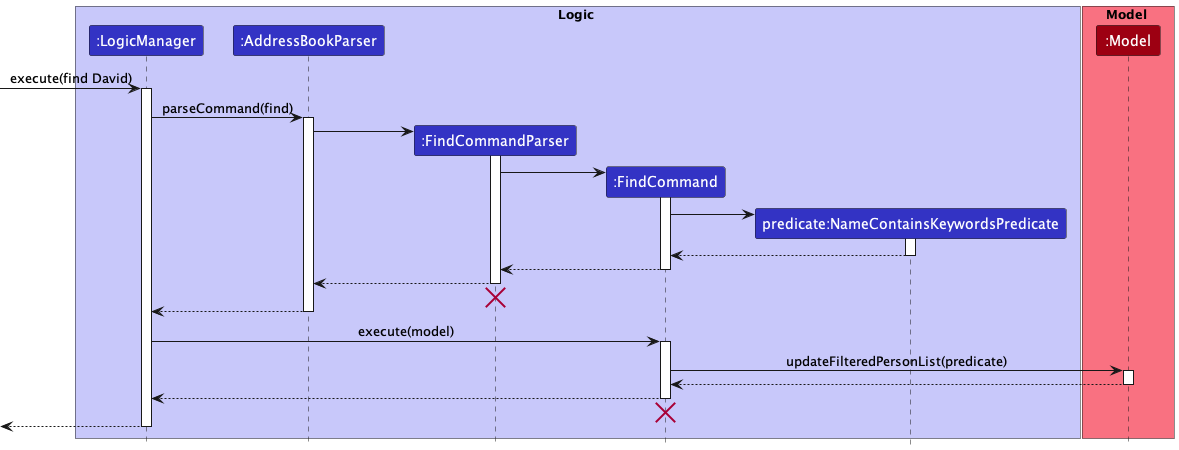
Note: The lifeline for FindCommandParser and FindCommand should end at the destroy marker (X) but due to a limitation of PlantUML, the lifeline reaches the end of diagram.
Design considerations:
Aspect: How find executes:
-
Alternative 1 (current choice): Chooses person based on the whole first/last name matching the keyword.
- Pros: More specific Persons list after the find command.
- Cons: User needs to know the first/last name of the person they are trying to find.
-
Alternative 2: Chooses person if name contains the keyword.
- Pros: Easier to find person.
- Cons: Persons list may show other persons that are not desired by the user.
Edit loan value and history of Person by EditLoan feature
The Edit Loan feature is facilitated by the EditLoanCommand which utilises the FindCommand. It allows users to edit the loan value and update the loan history of a person given the index of the person, or the name of the person.
If given a name that does not correspond to any person in the SectresBook, the edit feature performs the same operations as the Find command.
Given below is an example usage scenario and how the editLoan mechanism behaves at each step.
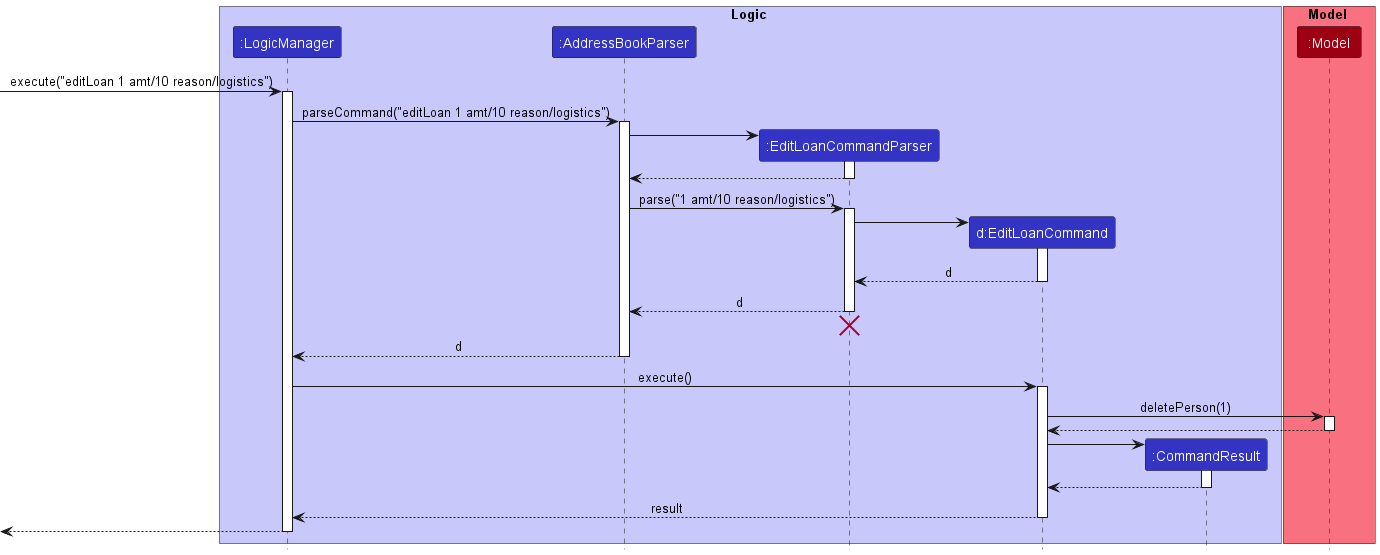
Step 1. The user enters the editLoan command, with either the index or the person’s name.
Step 2a If an index is entered, the EditLoanCommandParser carries this index to the EditCommand, which retrieves the Person to edit by getting the Model’s current FilteredList<Person> and retrieving by index.
Step 2b. If a non-number is entered, the EditLoanCommandParser invokes the FindCommandParser#parse method and executes it at the same time with FindCommand#execute. The FilteredList<Person> is then checked to ensure that there is exactly one person that corresponds with the search term. Otherwise, the method short-circuits with ambiguity errors (more than 1 person) or invalid person errors (no persons at all). If successful, EditLoanCommandParser returns a new EditLoanCommand with a one-based-index of 1.
- Example of ambiguity error message:
There is more than 1 person with the name [NAME]
- Example of invalid name error message:
There is nobody with the name [NAME]
Step 3. EditLoanCommand#execute is called by the LogicManager. The person to edit is retrieved by the index given and a new edited person is created by copying over non-transformed fields and replacing the transformed field.
Step 4. The editedPerson is then set to replace the previous state of the Person object in the Model with Model#setPerson.
The following sequence diagram shows how the editLoan feature works with index.
Find Persons and Notes by Tag
The find Persons and Notes by Tag feature (called findTag) is facilitated by FindTagCommand. It allows users to find all Persons and Notes with the given Tags.
Given below is an example usage scenario and how the findTag feature behaves at each step.
Step 1. The user executes findTag Finance command to find all Persons and Notes in the SectresBook with the tag Finance.
Step 2. A FindTagCommand is constructed with a PersonTagsContainsKeywordsPredicate and NoteTagsContainsKeywordsPredicate which will check through the list of Persons and Notes in the SectresBook and only show those with the tag Finance.
Step 3. The FindTagCommand is executed and the PersonTagsContainsKeywordsPredicate and NoteTagsContainsKeywordsPredicate is passed to model to update the Person List and Note List to only show Persons and Notes with the tag Finance.
The following sequence diagram shows how the findTag command works:
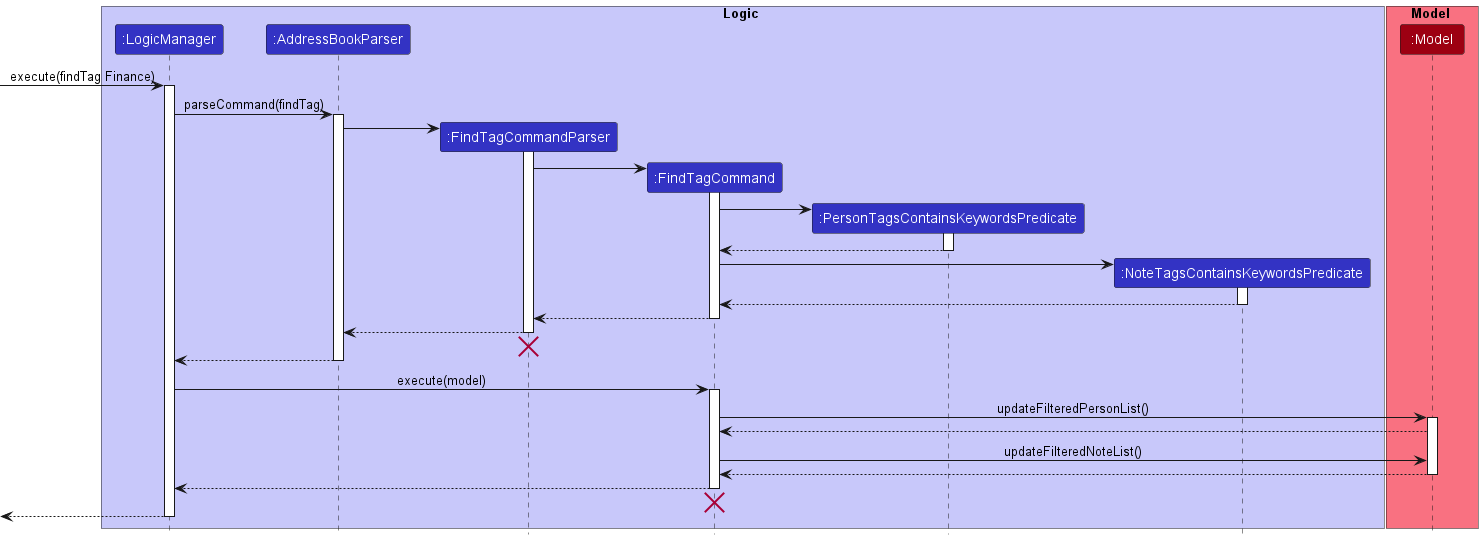
Note: The lifeline for FindTagCommandParser and FindTagCommand should end at the destroy marker (X) but due to a limitation of PlantUML, the lifeline reaches the end of diagram.
Design considerations:
Aspect: How findTag executes:
-
Alternative 1 (current choice): Goes through all Persons and Notes to check for Tag.
- Pros: Easy to implement (Similar to current find command).
- Cons: May have performance issues in terms of having to do many more steps.
-
Alternative 2: Goto searched Tags and get the Persons and Notes that each Tag points to.
- Pros: Will use fewer steps (Go directly to the Tags rather than looking through all Persons and Notes).
- Cons: Implementation would be more complicated.
Notes Features
Add Note
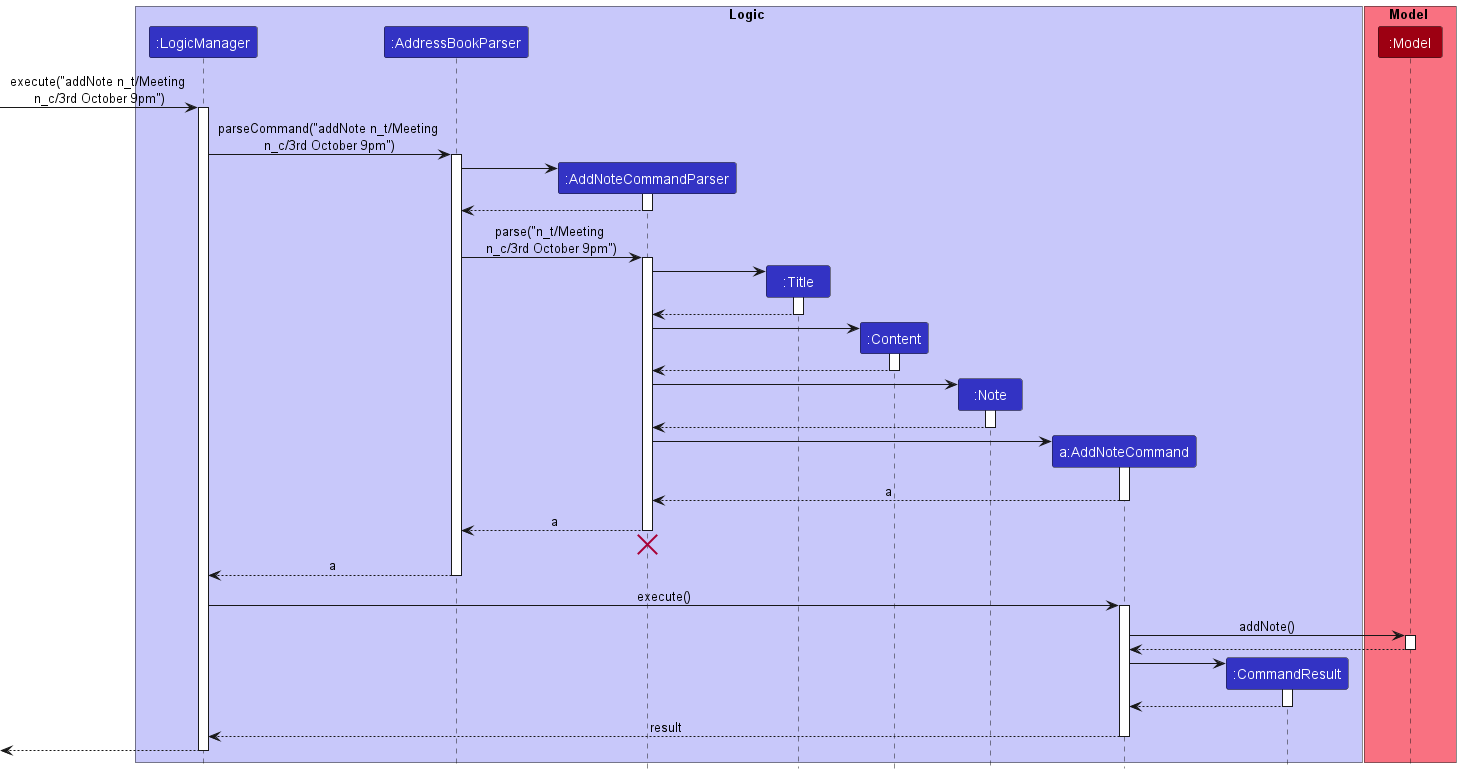
The addNote mechanism is facilitated by AddNoteCommand. It extends Command and overrides Command#execute() to implement the following operation:
-
AddNoteCommand#execute(): adds the specified note with its associated title and content into the list of notes to be kept track of.
Given below is an example usage scenario and how the addNote mechanism behaves at each step.
Step 1. The user launches the application and wishes to keep track of a note with the following attributes :
- Title : Club meeting
- Content : 3rd October 9pm, brief everybody on upcoming events.
Step 2. The user executes addNote title/Meeting content/3rd October 9pm, which calls LogicManager#execute(). Subsequently, AddressBookParser#parseCommand() is called
which will create a AddNoteCommandParser object and call AddNoteCommandParser#parse(). This method will take the user’s input and make sense of it to create a Note object.
Step 3. An AddNoteCommand will be created and AddNoteCommand#execute() will be called by LogicManager#execute().
Step 4. AddNoteCommand#execute() will call the following method from Model :
addNote(toAdd)
Step 5. AddNoteCommand#execute() will return a CommandResult object which will display the following message back to the user:
New note added: Title: Meeting, Content: 3rd October 9pm
The following sequence diagram shows how the addNote operation works:
Design considerations
Aspect: How Title and Content are represented:
-
Alternative 1 (current choice): Title and Content as separate objects.
- Pros: Easy to validate Title/Content. (In the respective classes)
- Cons: May have performance issues in terms of memory usage(Many objects might be created).
-
Alternative 2: Title and Content as fields of Note
- Pros: Will use less memory (Fewer objects created).
- Cons: Harder to validate Title/Content. Better OOP(Object-oriented programming) design.
Delete Note
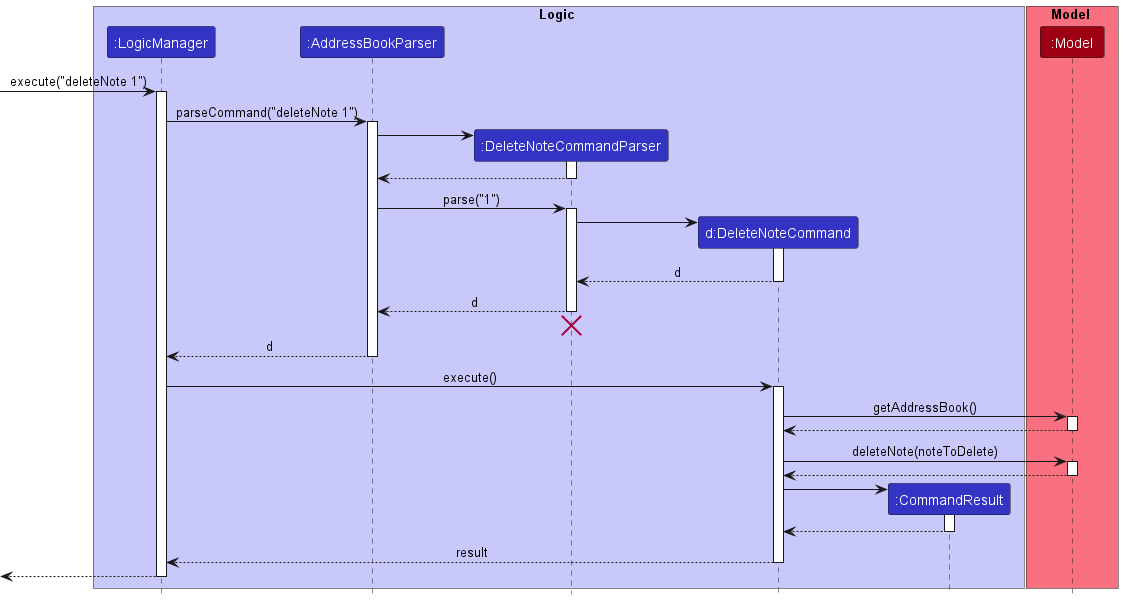
The deleteNote mechanism is facilitated by DeleteNoteCommand. It extends Command and overrides Command#execute() to implement the following operation:
-
DeleteNoteCommand#execute(): deletes the note at the specified index from the note list.
Given below is an example usage scenario and how the addNote mechanism behaves at each step.
Step 1. The user launches the application and wishes to delete a note that no longer needs to be kept track of. The user lists the current notes:
- Title: Meeting, Content: 3rd October 9pm
- Title: Event, Content: Remind club members to attend.
The user has decided to delete note 1.
Step 2. The user executes deleteNote 1, which calls LogicManager#execute(). Subsequently, AddressBookParser#parseCommand() is called
which will create a DeleteNoteCommandParser object and call DeleteNoteCommandParser#parse(). This method will take the user’s input and make sense of it to get the index of note to be deleted.
Step 3. A DeleteNoteCommand object will be created and DeleteNoteCommand#execute() will be called by LogicManager#execute().
Step 4. DeleteNoteCommand#execute() will call the following method from Model :
getAddressBook()deleteNote(noteToDelete)
Step 5. DeleteNoteCommand#execute() will return a CommandResult object which will display the following message back to the user:
Deleted Note: Title: Meeting, Content: 3rd October 9pm
The following sequence diagram shows how the addNote operation works:
Design considerations
Aspect: How the note to be deleted is specified:
-
Alternative 1 (current choice): Note is specified by index.
- Pros: Easy to implement.
- Cons: Would need to use listNotes command or gui to allow easy identification of index of note.
-
Alternative 2: Note is specified by Title.
- Pros: Would be more precise (Title of notes are unique).
- Cons: Long command would be needed to delete a note with a long Title.
Edit Note
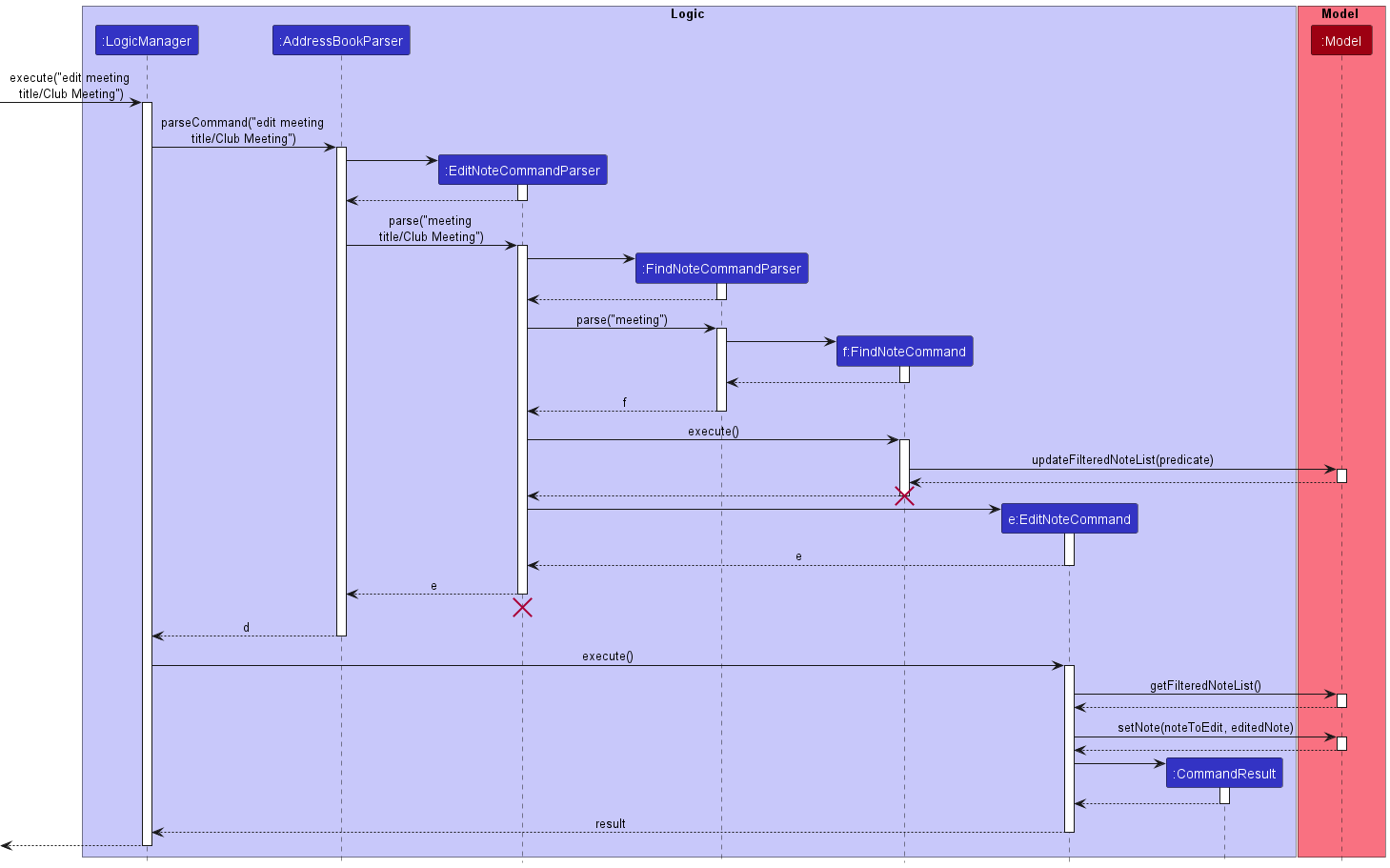
The editNote mechanism is facilitated by EditNoteCommand and utilises the FindNoteCommand. It extends Command and overrides Command#execute() to implement the following operation:
-
EditNoteCommand#execute(): edits the note at the specified index (or with matching title) from the note list.
Given below is an example usage scenario and how the editNote mechanism behaves at each step.
Step 1. The user launches the application and wishes to edit a note’s title with a new title. The user lists the current notes:
- Title: Meeting, Content: 3rd October 9pm
- Title: Event, Content: Remind club members to attend.
The user has decided to edit the first note titled Meeting with a new title, Club Meeting.
Step 2a. If an index is entered (user executes editNote 1 title/Club Meeting), the EditNoteCommandParser carries this index to the EditNoteCommand, which retrieves the Note to edit by getting the Model’s current FilteredList<Note> and retrieving by index.
Step 2b. If a non-number is entered (user executes editNote meeting title/Club Meeting), EditNoteCommandParser calls FindNoteCommandParser#parse() and executes FindNoteCommand#execute() concurrently.
FilteredList<Note> is then checked to ensure that exactly one note corresponds with the search term.
Otherwise, the method short-circuits with ambiguity errors (more than 1 note) or invalid note errors (no notes at all). If successful, EditNoteCommandParser returns a new EditNoteCommand object.
- Example of ambiguity error message:
There is more than 1 note with meeting in their title!
Please use a more unique specifier or use indices to edit.
- Example of invalid title error message:
There are no notes with meeting in their titles in the list!
Step 3. EditNoteCommand#execute() will be called by LogicManager#execute(). The note to edit is retrieved by the index given and a new edited note is created by copying over non-transformed fields and replacing the transformed field.
Step 4. The editedNote is then set to replace the previous state of the Note object in the Model with Model#setNote.
The following sequence diagram shows how the editNote feature works.
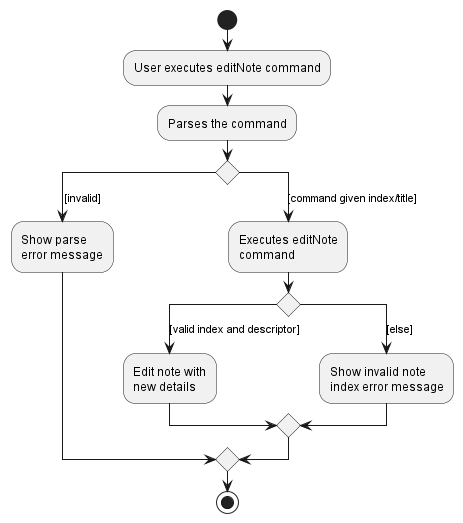
The following activity diagram shows the workflow of editNote feature.
Design considerations
Aspect: How the note to be edited is specified:
-
Alternative 1 (current choice): Note is specified by index or title.
- Pros: Better convenience for users.
- Cons: Would need to use findNote command for notes specified by title. (more dependencies)
-
Alternative 2: Note is specified by Title.
- Pros: Easy to implement
- Cons: Not flexible for users.
UI Features
General UI Design and Mechanism
During the creation of the new UI, a lot of the FXML structure and the relationships between containers of the UI had to be refactored.
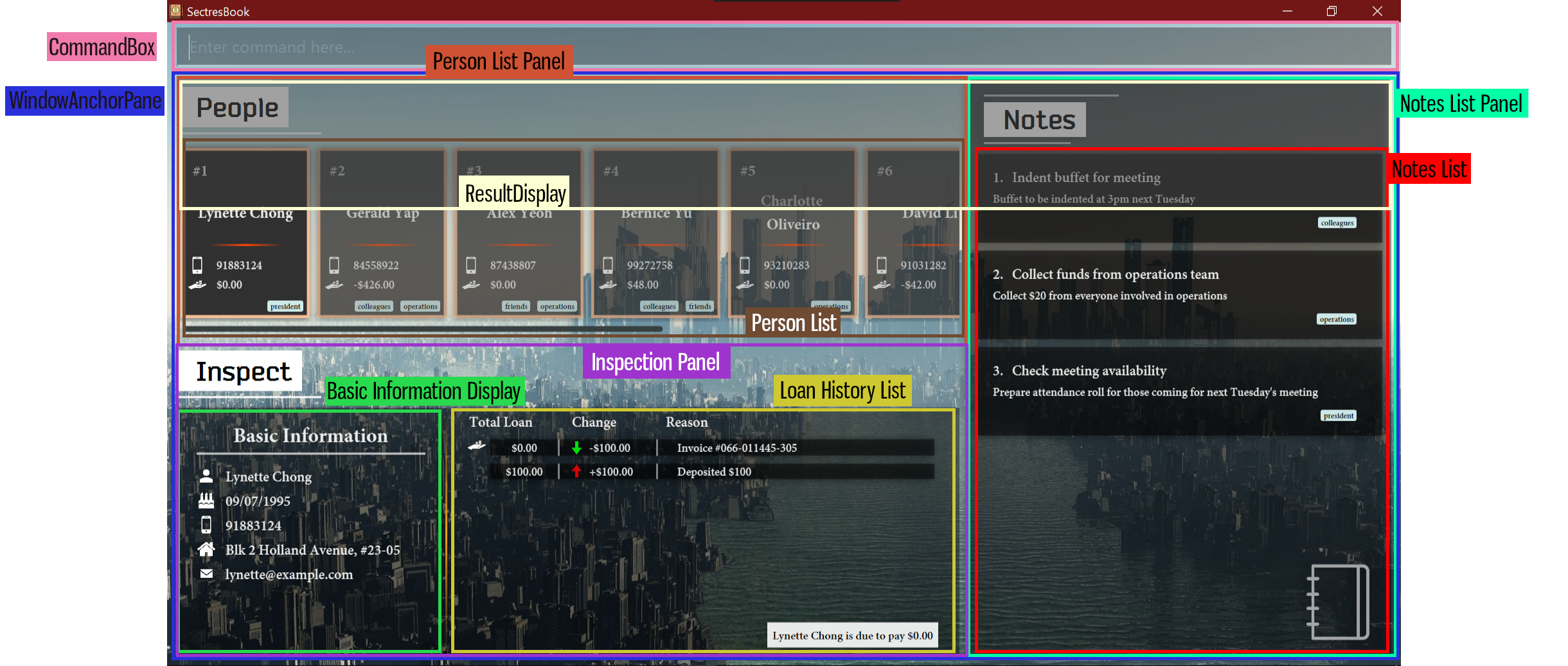
The UI is divided into 2 major sections - one occupied by the CommandBox and another occupied by the WindowAnchorPane.
The WindowAnchorPane consists of an StackPane.
- The
ResultDisplayis in the first layer - The
PersonListPanel,InspectionPaneland theNotesListPanelare in the second layer below.
The ResultDisplay is click-through (does not capture any mouse clicks) and normally has an opacity of 0, so it is effectively hidden.
The InspectionPanel is another anchor pane divided into two left and right elements:
- A basic information HBox on the left
- A loan history list view display on the right
These two elements in the InspectionPanel will always maintain the same ratio, basic information to loan history list view, of 2:3.
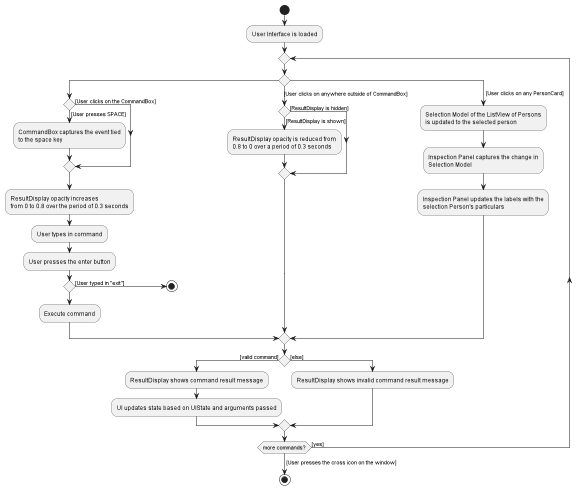
When the user clicks the CommandBox or presses the SPACE key, this triggers an event on the CommandBox that invokes a transition to the ResultDisplay to show the display. As it is on the first layer, the ResultDisplay will partially cover the elements below it.
Note that the ResultsDisplay never reach full opacity, instead an opacity of 0.8 allows the elements below to be partially visible.
Here are the anchor points of the three major panes within the second layer of WindowAnchorPane:
- The
PersonListPanelhas a left anchor of0, top anchor of0, right anchor of0.6with respect to window width (starting from left) and bottom anchor of0.45with respect to window height (starting from top). - The
InspectionPanelhas a left anchor of0, top anchor of0.45, right anchor of0.6with respect to window width (starting from left) and bottom anchor of0with respect to window height (starting from top). - The
NotesListPanelhas a left anchor of0.6, top anchor of0, right anchor of0with respect to window width (starting from left) and bottom anchor of0with respect to window height (starting from top).
The arbitrary values above are actually boundaries shared by the three panels and may be manipulated to change the view of the three major elements together. We may imagine the PersonListPanel to be glued to the NotesListPanel on its right and the InspectionPanel below, likewise for the other two elements. This allows the ratios to be adjusted together by simply change the vertical anchor or horizontal anchors.
The Observer Pattern is prevalent throughout the UI design in order to update other components in response to any change to the UI. One such example is the inspect command.
This activity diagram details how interactions with the UI is controlled
Design Considerations
As the main window of the application is resizable, the ratio of the anchors maintains the aspect of each panel with respect to the window size (unlike constant values which will not change according to window size).
The resizing is handled through the Observer Pattern, thankfully existing by default in JavaFX, which updates the proportions of the components upon any change to the height or width of the window.
The main problem came from estimating the correct current space allocated by the window size.
As the three main components are within the WindowAnchorPane, and the WindowAnchorPane shares its space with an unnamed StackPane described by the structure above, this meant that the WindowAnchorPane has less space than the actual window size. To make things worse, JavaFX overestimates the actual scene proportions in relation to the window size.
A padding of around 200px was used to help WindowAnchorPane displace it’s top height to the true position it is at and a bottom padding of 20px was added to give some room from the bottom of the window. The height and width passed into function resizing the anchor panes must always be adjusted according the scene size and the offsets.
A visual defect exists when the screen size exceeds 1080p, as the Inspection Panel is no longer able to stay attached to the anchor point at the bottom of the screen. This defect worsens as the window gets taller.
Inspect Feature
The inspect command is a UI-Centric command that controls which person’s details are currently shown in the inspection panel.
This is functionally similar to clicking on a person’s card, which also updates the information in the inspection panel.
This features uses an Observer on the SelectionModel of the ListView of persons, updating the InspectionPanel whenever a new person is selected.
Step 1. The user executes 'inspect David' command to view the details of David.
Step 2. An InspectCommandParser is parsed with David.
Step 3. The InspectCommand is created containing a keyword David.
Step 4. The InspectCommand is executed and a CommandResult is created with the UiState inspect and arguments David.
Step 5. The MainWindow is receives the CommandResult and reads the UiState part of the result. This directs it to update the inspect panel.
Step 6. The Person List is retrieved from the MainWindow and its selection model is accessed. From here, if the given argument is a number, we will index the person through the order in the list. Otherwise, we will search through the entire list until first person matching the keywords is returned.
Step 7. The Inspection Panel is retrieved from the main window and has its properties updated from the person’s information that was returned.
The following sequence diagram shows how the inspect command works:
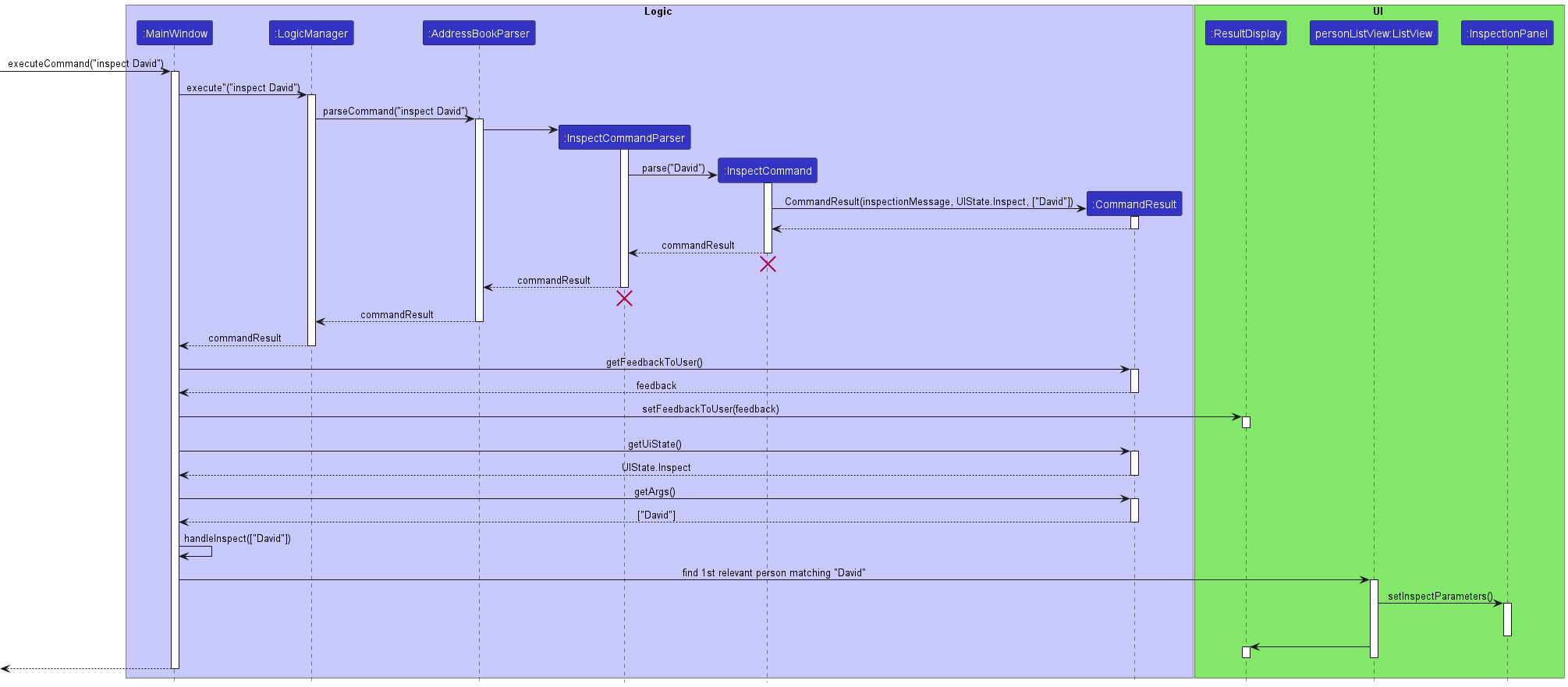
Note: The lifeline for InspectCommandSequence and InspectCommand should end at the destroy marker (X) but due to a limitation of PlantUML, the lifeline reaches the end of diagram.
Design considerations:
Aspect: How to design a UI command
Unlike other command, this command does not mutate any underlying data. One challenge is that the execution flow is different from other commands which mutate data, making the implementation less direct.
We had to find a good insertion point where the information carried from the user input could be used in the program without the need for major refactoring. We realised that the user’s input is first taken in through the MainWindow class, and through following the function calls, would be used in MainWindow::executeCommand. So the inspection operation is effectively added at the end of the executeCommand just before it terminates.
Inspiration was taken from the execution flow of handleExit and handleHelp prior to the construction of the new UI.
The procedures for handleExit and handleHelp were changed by refactoring CommandResult to carry an ideal state that the UI is expected to be in by the end of the execution. A switch statement was added to the bottom of the executeCommand function, much like how the normal commands are parsed, to deal with UI-Centric commands like help, exit and inspect.
Showing and Hiding the Notes Panel Feature
Here are the anchor points of the three major panes within the WindowAnchorPane:
- The
PersonListPanelhas a left anchor of0, top anchor of0, right anchor of0.6with respect to window width (starting from left) and bottom anchor of0.45with respect to window height (starting from top). - The
InspectionPanelhas a left anchor of0, top anchor of0.45, right anchor of0.6with respect to window width (starting from left) and bottom anchor of0with respect to window height (starting from top). - The
NotesListPanelhas a left anchor of0.6, top anchor of0, right anchor of0with respect to window width (starting from left) and bottom anchor of0with respect to window height (starting from top).
Notice that the PersonListPanel and InspectionPanel share a boundary of the ratio 0.45 with respect to the window height and the both of them share a boundary of 0.6 with respect to screen width with the NotesListPanel.
The command hideNotes is effectively accomplished by interpolating the ratios smoothly over time to create a sliding effect. To maintain the aspect ratio of the notes panel and prevent deformities, the right anchor interpolates from 0 to 0.6 - 1 = -0.4, as the left anchor interpolates from 0.6 to 1.
This maintains the constant size of x0.4 with respect to window size during the transition.
A fading transition is applied across the same time to smoothly reduce the opacity of the panel.
The time interval set for this transition is 0.3 seconds.
The showNotes implementation is exactly the inverse of the hideNotes implementation across time.
Design considerations:
Aspect: Challenges related to resizing
Because hiding the notes panel will also pull the inspection panel longer, and that the inspection panel is divided into two parts itself, the InspectionPanel is also further another anchor pane that maintains the ratio of the width between the basic information display and the loans history property.
This concept was only implemented after the implementation of hideNotes, where visual inconsistencoes will start appearing due to disobeying the original ratio.
The padding of the InspectionPanel also causes an issue if the right anchor of the pane is not manipulated with the left anchor, as the padding will snap the left anchor to the right of the right anchor. This causes the InspectionPanel to be pulled through the entire width of the NotesListPanel cause the entire WindowAnchorPane to overflow its allocated width. The consideration to slide the right anchor at a constant difference with respect to the left anchor was introduced to combat this issue.
[Proposed] Undo/redo feature
Proposed Implementation
The proposed undo/redo mechanism is facilitated by VersionedAddressBook. It extends AddressBook with an undo/redo history, stored internally as an addressBookStateList and currentStatePointer. Additionally, it implements the following operations:
-
VersionedAddressBook#commit()— Saves the current address book state in its history. -
VersionedAddressBook#undo()— Restores the previous address book state from its history. -
VersionedAddressBook#redo()— Restores a previously undone address book state from its history.
These operations are exposed in the Model interface as Model#commitAddressBook(), Model#undoAddressBook() and Model#redoAddressBook() respectively.
Given below is an example usage scenario and how the undo/redo mechanism behaves at each step.
Step 1. The user launches the application for the first time. The VersionedAddressBook will be initialized with the initial address book state, and the currentStatePointer pointing to that single address book state.
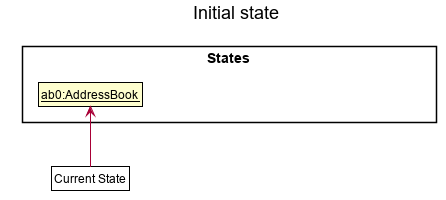
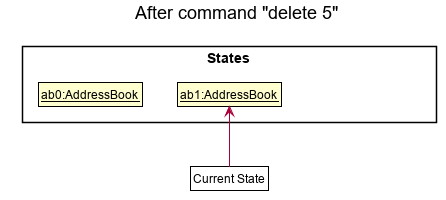
Step 2. The user executes delete 5 command to delete the 5th person in the address book. The delete command calls Model#commitAddressBook(), causing the modified state of the address book after the delete 5 command executes to be saved in the addressBookStateList, and the currentStatePointer is shifted to the newly inserted address book state.
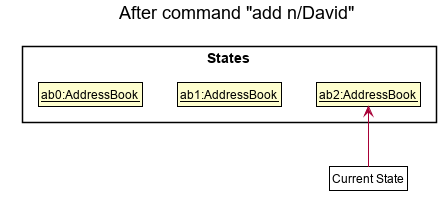
Step 3. The user executes add name/David … to add a new person. The add command also calls Model#commitAddressBook(), causing another modified address book state to be saved into the addressBookStateList.
Note: If a command fails its execution, it will not call Model#commitAddressBook(), so the address book state will not be saved into the addressBookStateList.
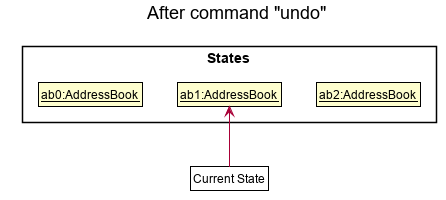
Step 4. The user now decides that adding the person was a mistake, and decides to undo that action by executing the undo command. The undo command will call Model#undoAddressBook(), which will shift the currentStatePointer once to the left, pointing it to the previous address book state, and restores the address book to that state.
Note: If the currentStatePointer is at index 0, pointing to the initial AddressBook state, then there are no previous AddressBook states to restore. The undo command uses Model#canUndoAddressBook() to check if this is the case. If so, it will return an error to the user rather
than attempting to perform the undo.
The following sequence diagram shows how the undo operation works:
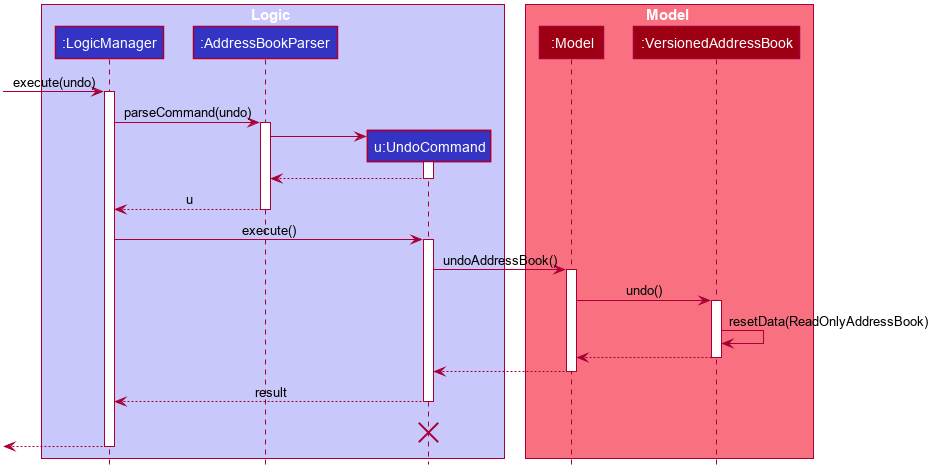
Note: The lifeline for UndoCommand should end at the destroy marker (X) but due to a limitation of PlantUML, the lifeline reaches the end of diagram.
The redo command does the opposite — it calls Model#redoAddressBook(), which shifts the currentStatePointer once to the right, pointing to the previously undone state, and restores the address book to that state.
Note: If the currentStatePointer is at index addressBookStateList.size() - 1, pointing to the latest address book state, then there are no undone AddressBook states to restore. The redo command uses Model#canRedoAddressBook() to check if this is the case. If so, it will return an error to the user rather than attempting to perform the redo.
Step 5. The user then decides to execute the command list. Commands that do not modify the address book, such as list, will usually not call Model#commitAddressBook(), Model#undoAddressBook() or Model#redoAddressBook(). Thus, the addressBookStateList remains unchanged.
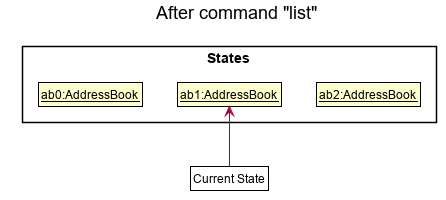
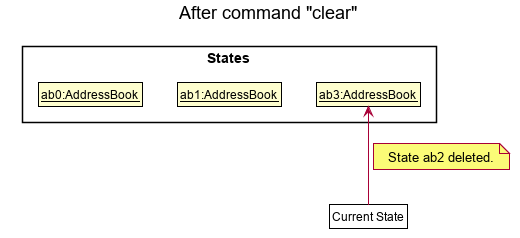
Step 6. The user executes clear, which calls Model#commitAddressBook(). Since the currentStatePointer is not pointing at the end of the addressBookStateList, all address book states after the currentStatePointer will be purged. Reason: It no longer makes sense to redo the add name/David … command. This is the behavior that most modern desktop applications follow.
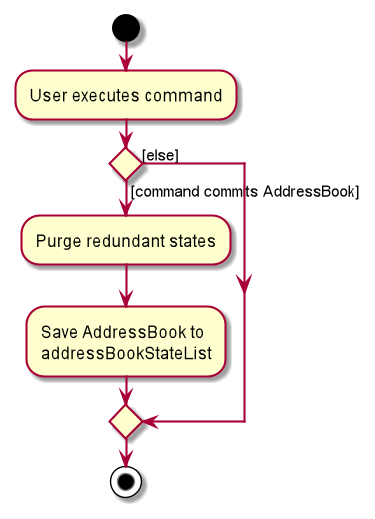
The following activity diagram summarizes what happens when a user executes a new command:
Design considerations:
Aspect: How undo & redo executes:
-
Alternative 1 (current choice): Saves the entire address book.
- Pros: Easy to implement.
- Cons: May have performance issues in terms of memory usage.
-
Alternative 2: Individual command knows how to undo/redo by
itself.
- Pros: Will use less memory (e.g. for
delete, just save the person being deleted). - Cons: We must ensure that the implementation of each individual command are correct.
- Pros: Will use less memory (e.g. for
{more aspects and alternatives to be added}
Documentation, logging, testing, configuration, dev-ops
Appendix: Requirements
Product scope
Target user profile:
- is acting as a secretary or a treasurer of a club with a lot of people
- has a need for a convenient way to organise paperwork and general information about the club
- has a need to manage a significant number of contacts
- has a requirement to keep notes and tabs on people and projects
- prefer desktop apps over other types
- can type fast
- prefers typing to mouse interactions
- is reasonably comfortable using CLI apps
Value proposition: manage club members and track notes faster than a typical mouse/GUI driven app or by pen and paper
User stories
Priorities: High (must have) - * * *, Medium (nice to have) - * *, Low (unlikely to have) - *
| Priority | As a … | I want to … | So that I can… |
|---|---|---|---|
* * * |
secretary | add club members’ information into the address book | keep track of their contact information. |
* * * |
secretary | edit a club member’s information | stay updated with them if their contact information changes. |
* * * |
secretary | delete a club member’s information from the address book | stop keeping track of them when they leave the club. |
* * * |
user | search for a person by their name or contact number | locate details of persons without having to go through the entire list. |
* * |
secretary | search contacts according to a specific tag | easily contact people in a whole group. |
* |
user | maintain a set of tasks to be done | keep track of things to be done. |
* * * |
treasurer | see the amount each person owes me | keep track of my finances. |
* |
person that keeps track of tasks | see who in my contacts lies under which tasks and which tasks lies under each contact | keep track of my deadlines. |
* |
treasurer | keep track of my club’s fund and the budget assigned to every project | better organise and plan the club’s finances. |
* |
secretary | archive the contact information of a club member that has left the club | contact old club members by looking at archived contacts. |
* * |
expert user | quickly use the CLI commands to speed up operations | enhance the productivity of meetings and task recording. |
* * |
secretary | pinpoint all the addresses of members and find the nearest amongst all members | organise club activities and events that minimise travel time. |
* * * |
treasurer | identify which member owes the club money | |
* * |
secretary | password protect the software | protect member’s personal data. |
* * |
busy treasurer | get reminded of upcoming payments | ask for payments before they are due. |
* |
user | use the GUI elements to autofill the CLI | recognise and learn the commands for future typing. |
* * |
user | configure the GUI elements’ size and colours | customise the application to my needs. |
* * |
secretary | set priorities on tasks | focus on tasks that are more important first. |
* |
secretary | get statistics on the number of tasks done | ensure that the club is on track with finishing tasks. |
* |
new user | learn how to use the commands using in-app guidance | easily pick up the commands and perform my duties |
* * |
new user | have sample data that I can test out commands with | familiarize myself with how the application works. |
* * * |
outgoing secretary | transfer the data to an incoming secretary | hand over my job without hassle. |
Use cases
(For all use cases below, the System is the SectresBook and the Actor is the user, unless specified otherwise)
Use case: UC1 - Add a person
MSS
- User requests to add a person.
-
SectresBook adds the person to the list of persons.
Use case ends.
Extensions
- 1a. The given person already exists.
-
1a1. SectresBook shows an error message.
Use case ends.
-
- 1b. Necessary fields are incomplete/empty.
-
1b1. Sectresbook shows an error message.
Use case ends.
-
Use case: UC2 - Update a person
MSS
- User requests to list persons.
- SectresBook shows a list of persons.
- User requests to update a specific person in the list.
-
SectresBook updates information of the person.
Use case ends.
Extensions
-
2a. The list is empty.
Use case ends.
- 3a. The given index is invalid.
-
3a1. SectresBook shows an error message.
Use case resumes at step 2.
-
- 3b. The command line arguments are invalid.
-
3b1. SectresBook shows an error message.
Use case resumes at step 2.
-
Use case: UC3 - Delete a person
MSS
- User requests to list persons.
- SectresBook shows a list of persons.
- User requests to delete a specific person in the list.
-
SectresBook deletes the person.
Use case ends.
Extensions
-
2a. The list is empty.
Use case ends.
-
3a. The given index is invalid.
-
3a1. SectresBook shows an error message.
Use case resumes at step 2.
-
Use case: UC4 - Find a person
MSS
- User request to find using keyword.
-
SectresBook shows a list of persons matching keyword.
Use case ends.
Use case: UC5 - Display list of persons
MSS
- User requests to list persons.
-
SectresBook displays the list of persons stored.
Use case ends.
Use case: UC6 - Edit Loan of person
MSS
- User requests to list persons.
- SectresBook shows a list of persons.
- User requests to update the loan of a specific person in the list.
- SectresBook updates loan and loan history of the person.
Extensions
-
2a. The list is empty.
Use case ends.
- 3a. The given index is invalid.
-
3a1. SectresBook shows an error message.
Use case resumes at step 2.
-
- 3b. The command line arguments are invalid.
-
3b1. SectresBook shows an error message.
Use case resumes at step 2.
-
Use case: UC7 - Find Person by their tag
MSS
- User requests to find using a tag keyword.
-
SectresBook shows a list of persons matching the tag keyword.
Use case ends.
Use case: UC8 - Add a Note
MSS
- User requests to add a note.
-
SectresBook adds the note to the list of notes.
Use case ends.
Extensions
- 1a. The given note title already exists.
-
1a1. SectresBook shows an error message.
Use case ends.
-
- 1b. Necessary fields are incomplete/empty.
-
1b1. Sectresbook shows an error message.
Use case ends.
-
Use case: UC9 - Update a Note
MSS
- User requests to list notes.
- SectresBook shows a list of notes.
- User requests to update a specific note in the list.
-
SectresBook updates information of the note.
Use case ends.
Extensions
-
2a. The list is empty.
Use case ends.
- 3a. The given index is invalid.
-
3a1. SectresBook shows an error message.
Use case resumes at step 2.
-
- 3b. The command line arguments are invalid.
-
3b1. SectresBook shows an error message.
Use case resumes at step 2.
-
Use case: UC10 - Delete a Note
MSS
- User requests to list notes.
- SectresBook shows a list of notes.
- User requests to delete a specific note in the list.
-
SectresBook deletes the person.
Use case ends.
Extensions
-
2a. The list is empty.
Use case ends.
-
3a. The given index is invalid.
-
3a1. SectresBook shows an error message.
Use case resumes at step 2.
-
Use case: UC11 - Find a Note
MSS
- User request to find using keyword.
-
SectresBook shows a list of notes matching keyword.
Use case ends.
Use case: UC12 - Display list of notes
MSS
- User has completed UC11
- User requests to list notes.
-
SectresBook displays the list of all notes stored.
Use case ends.
Use case: UC13 - Hide Note section
MSS
- User requests to hide the notes section of the Sectresbook.
-
Sectresbook hides the note section, extending the addressbook section.
Use case ends.
Extensions
-
1a. Already hiding the notes section.
Use case ends.
Use case: UC14 - Show note section
MSS
- User requests to show the notes section.
-
Sectresbook shows the notes section on the right side of the interface.
Use case ends.
Extensions
-
1a. Already showing the notes section.
Use case ends.
Use case: UC15 - Exit program
MSS
- User requests to exit program.
-
Sectresbook closes the program.
Use case ends.
Non-Functional Requirements
- Should run independently of remote servers.
- Should not use a relational database management system to store data.
- Should work on any mainstream OS as long as it has Java
11or above installed. - Should not require internet connection, all operations are performed locally.
- Should not consume a lot of battery to keep it running in the background.
- Should be able to hold up to 1000 persons without a noticeable sluggishness in performance for typical usage.
- Should be able to hold up to 1000 notes without a noticeable sluggishness in performance for typical usage.
- Should be able to respond to any commands within 2 seconds as long as there are under 1000 entries stored in the application.
- A user with above average typing speed for regular English text (i.e. not code, not system admin commands) should be able to accomplish most of the tasks faster using commands than using the mouse.
- Should automatically save any changes to the data in the storage directly.
- The product is intended only for a single user (i.e. not a multi-user product)
Glossary
- Mainstream OS: Windows, Linux, Unix, OS-X
- Java 11: Eleventh version of the Java Platform, Standard Edition Development Kit (JDK). SectresBook requires this to be installed to run.
- Private contact detail: A contact detail that is not meant to be shared with others
- Note: A segment of text that describes a task to be done, coupled with tags that reference people in the SectresBook who are associated with the given task.
- Secretary: A person acting as overseers for the administrative functions of a club.
- Treasurer: A club member that manages and accounts for all the funds of a club.
- Tag: A label that groups related people or notes together, such that they can be referred to as a single encapsulated entity specified by the tag.
- Graphical User Interface (GUI): An image-based interface that is more visually appealing than a command-line interface and encapsulates information through the use of icons and images.
- Command Line Interface (CLI): A text-based interface that receives typed commands as input and returns textual feedback as output.
Appendix: Instructions for manual testing
Given below are instructions to test the app manually.
Note: These instructions only provide a starting point for testers to work on;
testers are expected to do more exploratory testing.
Launch and shutdown
-
Initial launch
-
Download the jar file and copy into an empty folder
-
Double-click the jar file Expected: Shows the GUI with a set of sample contacts. The window size may not be optimum.
-
-
Saving window preferences
-
Resize the window to an optimum size. Move the window to a different location. Close the window.
-
Re-launch the app by double-clicking the jar file.
Expected: The most recent window size and location is retained.
-
Deleting a person
-
Deleting a person while all persons are being shown
-
Prerequisites: List all persons using the
listcommand. Multiple persons in the list. -
Test case:
delete 1
Expected: First contact is deleted from the list. Result display shows details of the deleted contact. -
Test case:
delete 0
Expected: No person is deleted. Result display shows error message stating non-positive indices not allowed. -
Test case:
delete Charlotte, assuming there is only 1 person with the nameCharlottein the Sectresbook.
Expected: Person with nameCharlotteis deleted from the list. Result display shows details of the deleted contact. -
Other incorrect delete commands to try:
delete,delete x,...(where x is larger than the list size)
Expected: Similar to previous.
-
-
Deleting a person, but not all persons are shown
-
Prerequisites: List a subset of persons using the
findcommand. At least 1 person in the list. -
Test case:
delete 1, assuming there is more than or equal to 1 person in the Sectresbook.
Expected: First contact is deleted from the list. Result display shows details of the deleted contact. -
Test case:
delete -1
Expected: No person is deleted from the list. Result display shows error message stating non-positive indices not allowed. -
Test case:
delete Charlotte, assuming there is only 1 person with the nameCharlottein the Sectresbook.
Expected: Person with nameCharlotteis deleted from the list. Result display shows details of the deleted contact shown. -
Test case:
delete Sean, assuming there is more than 1 person with the nameSeanin the Sectresbook.
Expected: No person is deleted from the list. Sectresbook lists the contacts withSeanin their name. Result display shows error message stating more than one person with that name. -
Other incorrect delete commands to try:
delete,delete phone/PHONE_NUMBER,...(wherePHONE_NUMBERis a phone number of a person).
Expected: No person is deleted from the list. Result display shows error message stating invalid command format.
-
Editing a person
-
Editing a person after listing all persons or after finding a list of persons (list should contain more than 0 people).
-
Test case:
edit 1 phone/98112233, assuming there is more than or equal to 1 person in the Sectresbook.
Expected: Phone number of the first contact in the list is edited. Result display shows details of the edited contact. -
Test case:
edit 5 tag/Friend, assuming there is less than 5 people currently displayed in the Sectresbook.
Expected: No person is edited. Result display shows error message stating invalid index. -
Test case:
edit Charlotte tag/Friend, assuming there is only 1 person with the nameCharlottein the Sectresbook.
Expected: The tag of the Person with the nameCharlotteis edited. Result display shows details of the edited contact. -
Test case:
edit Sean tag/Colleague, assuming there is more than 1 person with the nameSeanin the Sectresbook.
Expected: No person is edited from the list. Sectresbook shows the list of persons withSeanin their name. Result display shows error message stating more than one person with that name. -
Other incorrect edit commands to try:
edit,edit 2 phone/TEXT,...(whereTEXTis an input with only alphabets).
Expected: No person is edited in the list. Result display shows error message stating phone number should be only contain numbers and at least 3 digits.
-
Editing a loan of a person
-
Editing a loan of a person after listing all persons or after finding a list of persons (list should contain more than 0 people).
-
Test case:
editLoan 1 amt/10 reason/Logistics, assuming there is more than or equal to 1 person in the Sectresbook.
Expected: Loan amount and history of the first contact is updated. Result display shows details of the edited contact. -
Test case:
editLoan 5 amt/100 reason/Logistics, assuming there is less than 5 people currently displayed in the Sectresbook.
Expected: No person is edited. Result display shows error message stating invalid index provided. -
Test case:
editLoan Charlotte amt/10 reason/Test, assuming there is only 1 person with the nameCharlottein the Sectresbook.
Expected: Loan amount and history of the Person with the nameCharlotteis edited. Result display shows details of the edited contact. -
Test case:
editLoan Sean amt/10 reason/Test, assuming there is more than 1 person with the nameSeanin the Sectresbook.
Expected: No person is edited from the list. Sectresbook shows the list of persons withSeanin their name. Result display shows error message stating more than one person with that name. -
Other incorrect editLoan commands to try:
editLoan,editLoan amt/,editLoan 1 amt/TEXT reason/TEXT,...(whereTEXTis an input with only alphabets).
Expected: No person is edited in the list. Result display shows error message stating invalid command format.
-
Finding a person
-
Finding a person with the given keyword.
-
Test case:
find Ryan, assuming there is at least 1 person with the substringRyanin the Sectresbook.
Expected: Person list is updated with contacts that contain the substringRyan. Result display shows the number of persons listed. -
Test case:
find Jack, assuming there is no one with the substringJack.
Expected: Person list is updated, showing nobody in the list. Result display shows the number of persons listed. -
Test case:
find 8445, assuming there is at least 1 person with phone number starting with8445in the Sectresbook.
Expected: Person list is updated with contacts with phone number starting with8445. Result display shows the number of persons listed. -
Test case:
find 8445 Ryan, assuming there is at least 1 person with phone number starting with8445and substringRyanin their name in the Sectresbook.
Expected: Person list is updated with contacts that contain the substringRyanand phone number starting with8445. Result display shows the number of persons listed. -
Incorrect editLoan command to try:
editLoan.
Expected: No change in the list shown. Result display shows message stating invalid command format.
-
Listing a person
-
Listing all persons in the Sectresbook.
-
Test case:
list
Expected: Person list is updated to show all persons in the Sectresbook. Result display shows success message. -
Test case:
list TEXT, whereTEXTis any string input.
Expected: Person list is updated to show all persons in the Sectresbook. Result display shows success message.
-
Inspecting a person
-
Inspecting a person while all persons are shown.
-
Test case:
inspect 1, assuming there is at least 1 person shown in the person list.
Expected: Displays the information of the contact with index 1 in the person list. Result display shows success message. -
Test case:
inspect Charlotte, assuming there is only 1 person with the nameCharlottein the Sectresbook.
Expected: Displays the information of the contact with nameCharlottein the person list. Result display shows success message. -
Test case:
inspect -1
Expected: No change in the person being inspected. Result display shows error message stating inspection failed, name should be alphanumeric characters only. -
Test case:
inspect Jack, assuming there is more than 1 person with the nameJackin the person list.
Expected: No change in the person currently being inspected. Result display shows error message stating more than one person with that name. -
Other incorrect inspect commands to try:
inspect.
Expected: No change in the person currently being inspected. Result display shows error message stating nothing to inspect.
-
Adding a note
- Adding a note with title that is yet to exist
-
Test case:
addNote title/event content/november 3rd 4pm
Expected: Note with titleeventand contentnovember 3rd 4pmadded into notes list. Result display shows message stating new note is added. Notes display panel shows new note. -
Test case:
addNote title/event content/november 3rd 4pm tag/progs
Expected: Result display shows message stating new note is added. Notes display panel shows new note. -
Test case: incorrect
addNotecommands (e.g.addNote,addNote title/event,addNote content/groceries)
Expected: No new note is added to notes list. Result display shows error message stating invalid command format.
-
- Adding a note with a duplicate title
- Test case:
addNote title/event content/november 3rd 4pm
Expected: No new note is added to notes list. Result display shows message stating that note already exists in the notes list. No change to the notes display panel.
- Test case:
Editing a note
- Editing a note
-
Test case:
editNote 1 content/meeting at mpsh, assuming there exists at least 1 note in the current notes list.
Expected: Note at index 1 in the current notes list have its content changed tomeeting at mpsh. Result display shows message stating note was edited. -
Test case:
editNote progs content/meeting at mpsh, assuming there exists a note with titleprogs.
Expected: Note with titleprogsin the current notes list have its content changed tomeeting at mpsh. Result display shows message stating note was edited. -
Test case:
editNote 5 content/meeting at mpsh, assuming there are less than 5 notes in the current notes list.
Expected: No note was edited. Result display shows error message stating index provided to be invalid. -
Test case:
editNote content/meeting at mpsh
Expected: No note was edited. Status bar display error message stating at least one field to be edited has to be provided. -
Test case: incorrect
editNotecommands (e.g.editNote,editNote content/abc)
Expected: No note was edited. Result display shows error message stating invalid command format.
-
Deleting a note
- Deleting a note
-
Test case:
deleteNote 1, assuming there exists at least 1 note in the current notes list.
Expected: Note at index 1 is removed from the current notes list. Result display shows message stating note was deleted. -
Test case:
deleteNote
Expected: No note was deleted. Result display shows error message stating invalid command format.
-
Finding a note
- Finding a note
-
Test case:
findNote progs
Expected: Notes with title containing the keywordprogsare shown on the notes display panel. Result display shows message stating number of notes listed. If there are no notes withprogsin the title, notes display panel will be empty. -
Test case:
findNote
Expected: No change to the notes display panel. Status bar display error message stating invalid command format.
-
List all notes
- List notes
- Test case:
listNote
Expected: Notes display panel is populated with all existing notes. Result display shows message stating listed all notes.
- Test case:
Hide notes
- Hide notes
-
Test case:
hideNotes, assuming notes display panel is on shown on the GUI.
Expected: Notes display panel is hidden from the GUI. Persons list and Inspect section is extended horizontally to fill the GUI. Result display shows message stating notes panel hidden. -
Test case:
hideNotes, assuming notes display panel is already hidden. Result display shows message stating notes panel hidden.
Expected: No change to the GUI. Result display shows message stating notes panel hidden. -
Other
hideNotescommands with additional arguments (e.g.hideNotes 1,hideNotes abc)
Expected: Additional arguments are ignored, behaviour is same ashideNotes.
-
Show notes
- Show notes
-
Test case:
showNotes, assuming notes display panel is hidden from GUI.
Expected: Notes display panel appears on the right side of the GUI. Persons list and Inspect section becomes horizontally narrower. Result display shows message stating notes panel shown. -
Test case:
showNotes, assuming notes display panel is already shown on the GUI.
Expected: No change to the GUI. Result display shows message stating notes panel shown. -
Other
showNotescommands with additional arguments (e.g.showNotes 1,showNotes abc)
Expected: Additional arguments are ignored, behaviour is same asshowNotes.
-
Finding person/notes based on tag
- Find using tag
- Test case:
findTag cs2103
Expected: Persons list display persons tagged withcs2103. Notes display panel displays notes tagged withcs2103. Result display shows message stating number of people listed in the persons list.
If there is no person tagged withcs2103, the persons list will be empty.
If there is no note tagged withcs2103, the notes display panel will be empty.
- Test case:
Viewing Help
-
Viewing help bar.
- Test case:
help
Expected: The help popup screen is shown.
- Test case:
Clearing all data
-
Clearing all data
- Test case:
clear
Expected: Clears all data from the Sectresbook.
- Test case:
Exiting program
-
Exiting the Sectresbook
- Test case:
exit
Expected: The program closes.
- Test case: